
Voice (ElevenLabs)
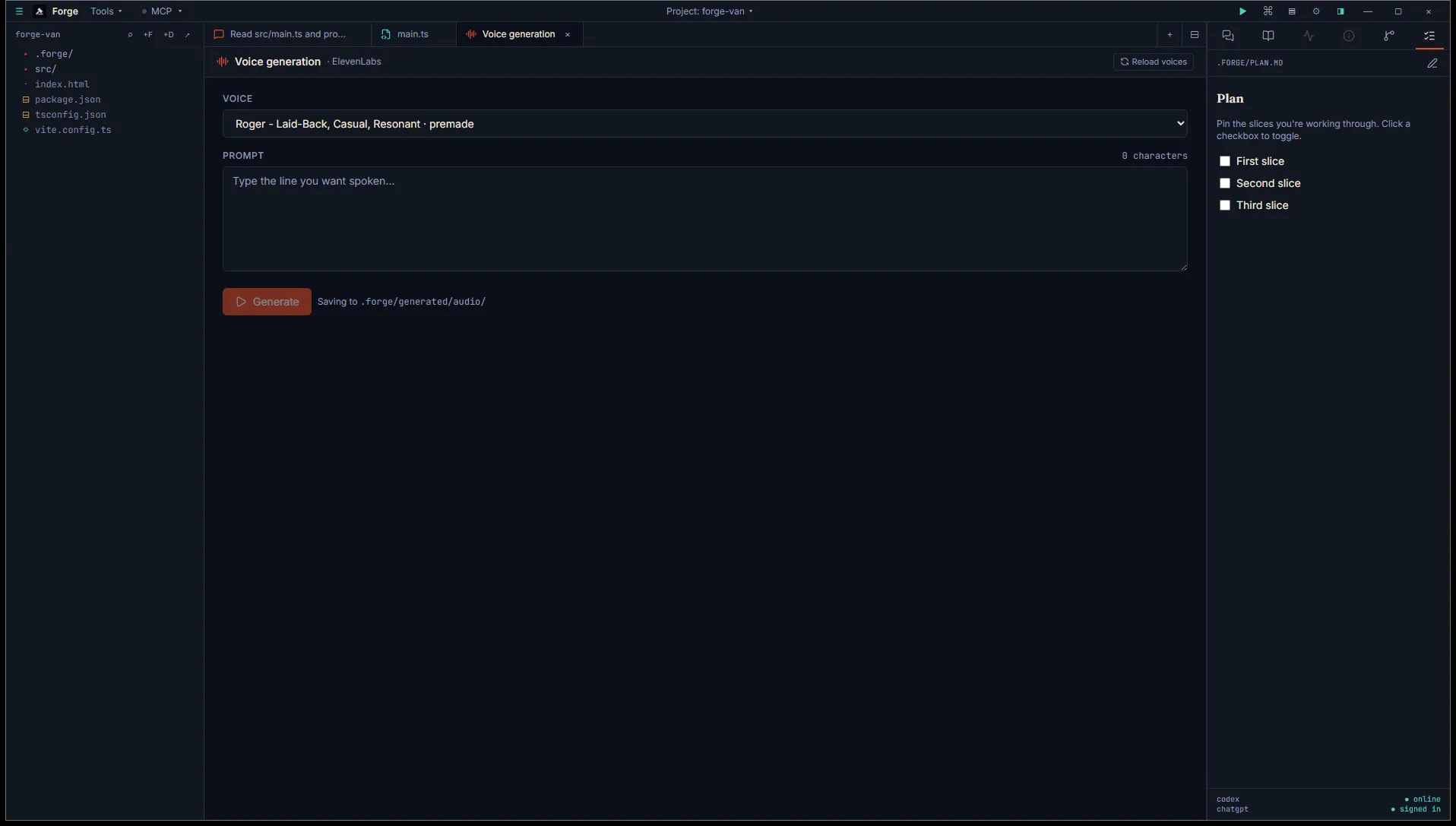
The Voice tab generates spoken audio from a text prompt by selecting a pre-trained ElevenLabs voice. Use it for placeholder VO during prototyping, narration for prototypes, or quick character lines while you wait on real recordings.
Open it
Section titled “Open it”Title bar Tools menu, then Asset generation (BYO key), then Voice — ElevenLabs. The tab opens alongside the chat.
You need an ElevenLabs API key. The free tier covers a useful amount of TTS. Paid plans unlock higher quality voices and remove rate limits.
Add the key in Settings → Integrations → ElevenLabs. Paste it once and Forge stores it in your Windows Credential Manager. The frontend never sees the secret again.
Use it
Section titled “Use it”Three inputs:
- Voice picker. Forge fetches your available voices on first open of the tab and caches them for the session. The list includes ElevenLabs presets and any voices you’ve cloned.
- Text prompt. What you want spoken. Character count is shown in the label.
- Project path. Implicit. If you’re in project mode, output saves under the project. In open mode, output saves to
~/.forge/generated/audio/.
Click Generate. The button animates while the request is in flight. When the result arrives, an inline player appears with autoplay and an option to reveal the file in Explorer.
Output
Section titled “Output”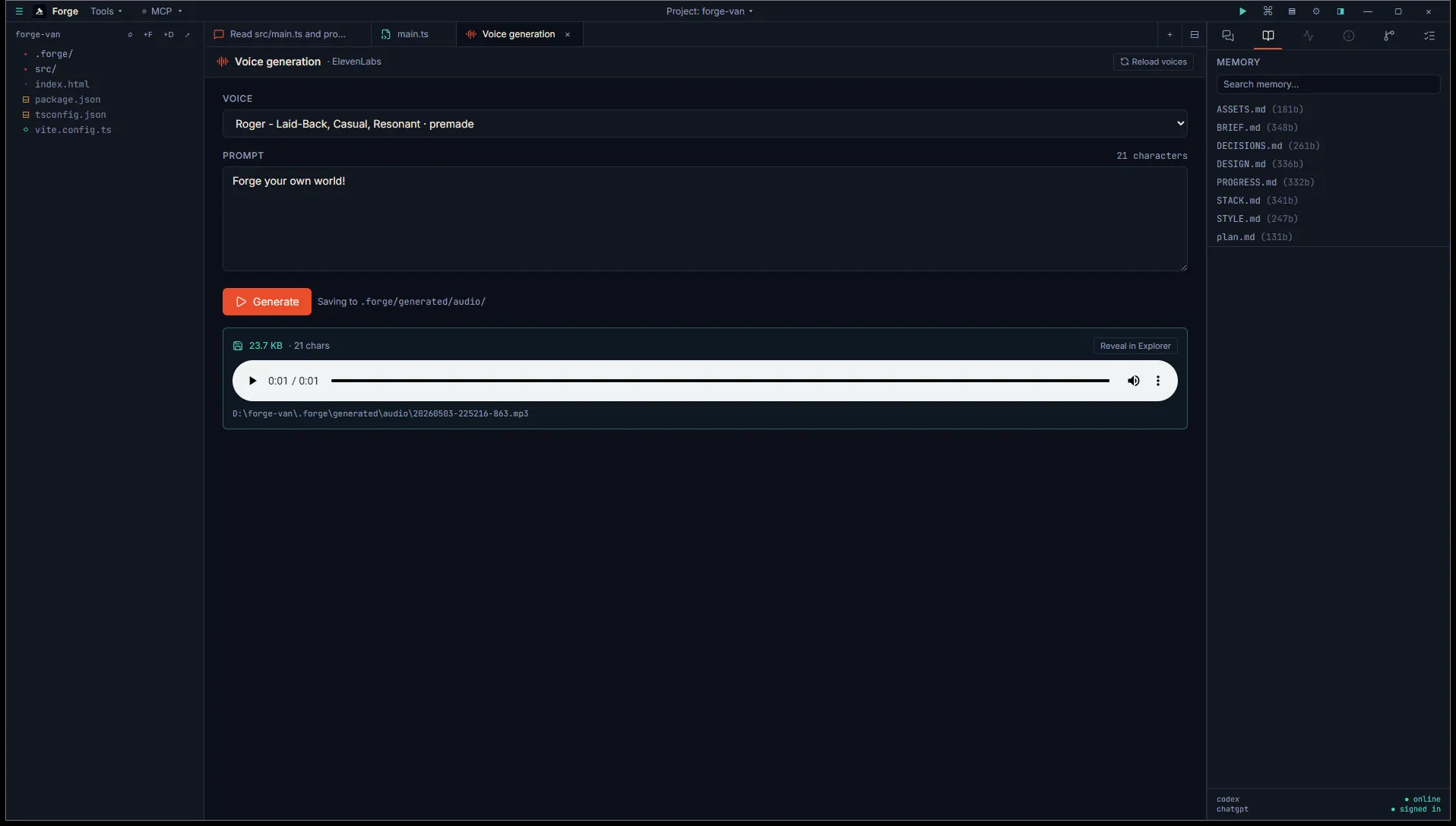
MP3 saved to <project>/.forge/generated/audio/<timestamp>.mp3 (or ~/.forge/generated/audio/ in open mode). Each generation is logged to ASSETS.md via a memory proposal so the prompt and voice ID are preserved alongside the audio.
To trim a generated clip down to the bit you actually want (cutting off the ElevenLabs sigh at the end), use the Audio trimmer.
- Voices are cached at module scope. Reopening the tab in the same session doesn’t re-hit the API. Hit Reload voices in the tab if you’ve added a new clone in ElevenLabs and want it to show up.
- If the request fails, the error is shown inline. Common causes: missing API key, rate limit hit on the free tier, ElevenLabs maintenance.