
Aseprite reader
The Aseprite reader opens .ase and .aseprite files, surfaces the metadata Aseprite stores inside (frames, layers, durations), and exports a horizontal-strip atlas with a JSON descriptor.
It’s read-only. There is no pixel editing here. For that, use Aseprite proper.
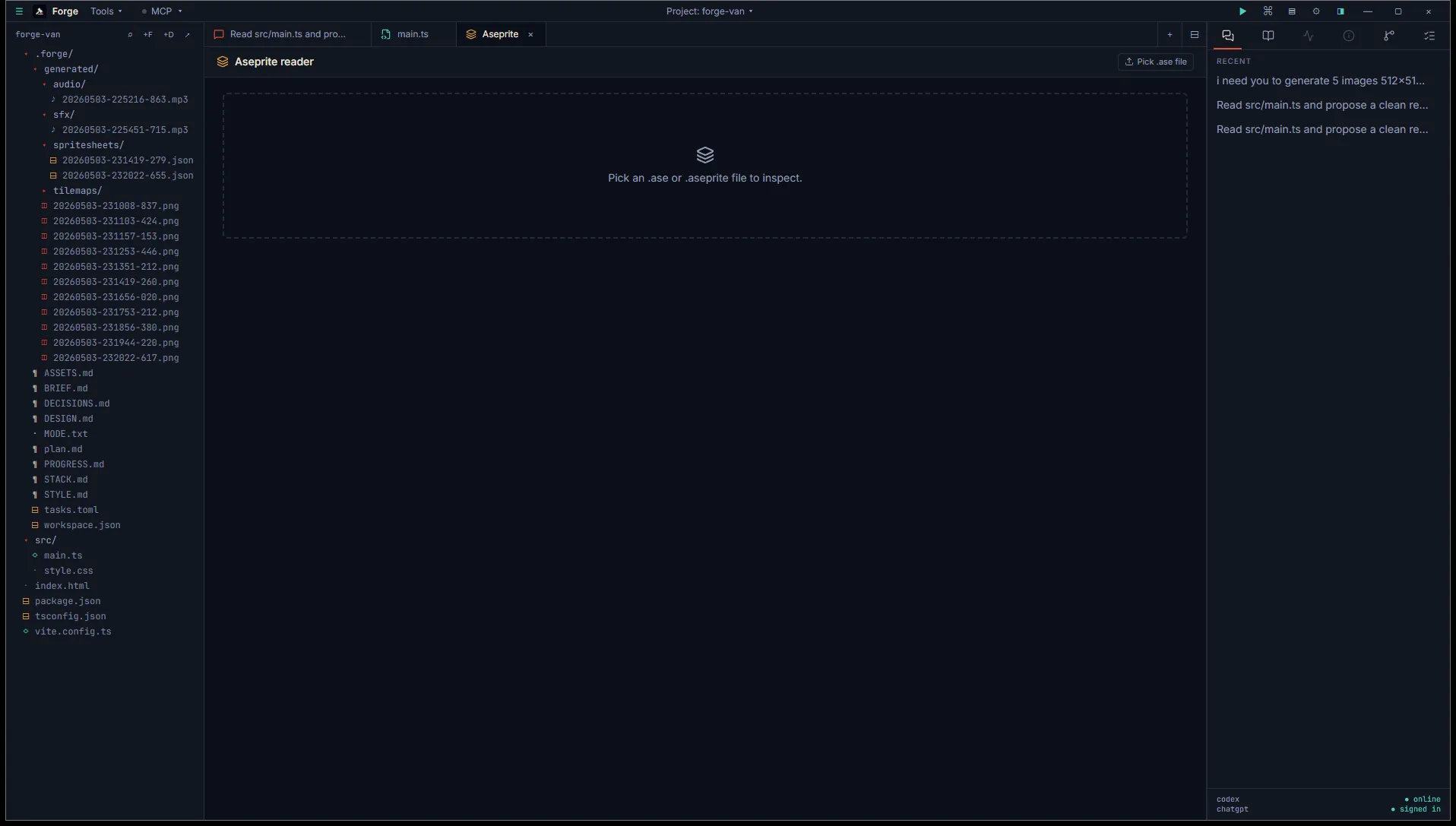
Open it
Section titled “Open it”Title bar Tools menu, then Pipeline tools, then Aseprite reader. Or click an .ase / .aseprite file in the project explorer.
What it shows
Section titled “What it shows”The header has a file picker (Pick .ase file) and a stats grid:
- File size.
- Frame count.
- Layer count.
- Total duration (sum of all frame durations).
Below the stats:
- A frame preview with a slider. Drag to scrub through frames. Each frame’s duration in milliseconds is shown.
- A layers list with each layer’s name (read-only).
Export an atlas
Section titled “Export an atlas”If the file has at least one frame, the Export atlas (PNG + JSON) button is enabled. Click it to produce:
- PNG, a horizontal strip with all frames laid out left to right.
- JSON descriptor (Phaser-compatible shape) keyed by
frame-N.
Both files save to <project>/.forge/generated/aseprite/<timestamp>/. The result card shows the atlas dimensions and frame count with reveal buttons for each file.
What this isn’t
Section titled “What this isn’t”- Not an editor. No pixel painting, no layer reordering, no animation timing changes. Edit in Aseprite, save, re-open in Forge to see the new metadata.
- Not a power-of-two packer. Frames are packed in a single horizontal row, so wide animations produce wide atlases. If you need a tightly packed atlas (especially for many frames), drop the rendered frames into the Sprite sheet packer, which uses MaxRects.
- Not yet bulletproof on edge cases. Frame palettes, complex blend modes, and layer groups are mostly handled, but if something looks off, fall back to Aseprite’s own export menu.