
Web preview
The Preview tab manages your project’s dev server from inside Forge. Start, stop, restart, watch logs, and open the running URL in your system browser.
Open it
Section titled “Open it”Title bar Tools menu, then View, then Open preview. The option is disabled until a project is open.
The preview is driven by the [preview] section of <project>/.forge/tasks.toml. Without that section, the tab shows a warning explaining what to add.
tasks.toml configuration
Section titled “tasks.toml configuration”[[task]]id = "setup"label = "Install dependencies (pnpm install)"command = "pnpm install"
[preview]command = "pnpm dev"setup_task = "setup"- command is what Forge spawns. Vite, Webpack, esbuild, plain Python servers, anything that starts an HTTP listener.
- setup_task points at a
[[task]]id to run when the dev server can’t start because dependencies aren’t installed yet. The preview tab surfaces a Run setup task button that pops a terminal with the command pre-loaded. Optional: if omitted, Forge falls back to runningpnpm installso older projects still get the button. - url_pattern is a regex with one capture group; the default is tuned for Vite, Phaser, and Three.js dev-server output. Override only if your server logs the URL in an unusual format.
- port can be set explicitly if URL detection fails entirely.
What the tab shows
Section titled “What the tab shows”- Status: idle, starting, running, stopped, or error.
- URL: the live localhost URL once the server reports ready, with a Copy URL button.
- Start preview / Restart preview button.
- Open in browser button. Hands the URL to your system default browser.
- Stop button.
- Server logs: collapsible details showing the most recent 50 lines of stdout. New log lines arrive as events.
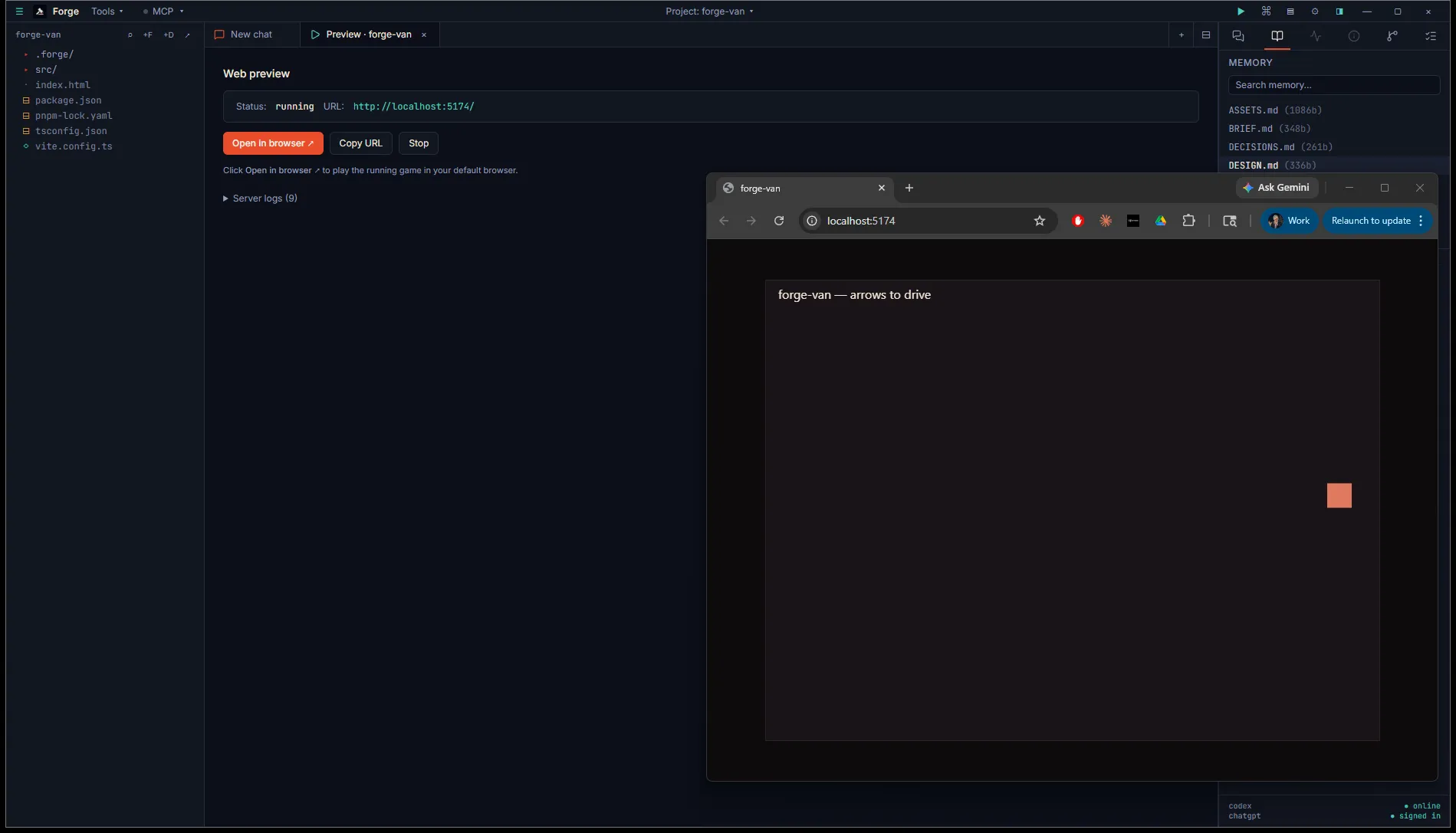
If the dev server reports EADDRINUSE, the panel surfaces the conflict with a hint about killing the existing process or changing the port in tasks.toml. If it exits because dependencies aren’t installed, the error block grows a one-click Run setup task button that runs pnpm install (or your project’s configured setup_task) in a fresh terminal.
Why a system browser, not an iframe
Section titled “Why a system browser, not an iframe”Earlier versions of Forge embedded the preview as an iframe inside the workspace tab. WebView2 doesn’t handle this well: any JavaScript in the iframe that touches window.opener, window.parent, or certain security APIs can crash the renderer, blanking the entire Forge window.
Opening in the system browser sidesteps the problem. You get a real browser dev tools surface, your hot-reload works exactly as it would standalone, and a crashing game doesn’t take Forge down with it.
Reconnecting
Section titled “Reconnecting”If you close and reopen the Preview tab while the dev server is still running, Forge reattaches to the existing process rather than respawning. The status flips back to running and you can keep going without losing logs.
What’s next
Section titled “What’s next”- Tasks runner covers the rest of
tasks.toml(build commands, headless tests, etc). - Quickstart: Web walks through a fresh Three.js / Phaser / vanilla setup.
- Deploy a web game covers shipping the build.