
Inspector tabs
The Inspector is the right-hand panel. Its tabs change based on the active workspace tab and the project’s engine. This page lists every Inspector tab Forge ships, with the conditions that enable each one.
Toggle the Inspector with Ctrl+Alt+B. The last-active tab is remembered across sessions in localStorage.
Always available
Section titled “Always available”Sessions
Section titled “Sessions”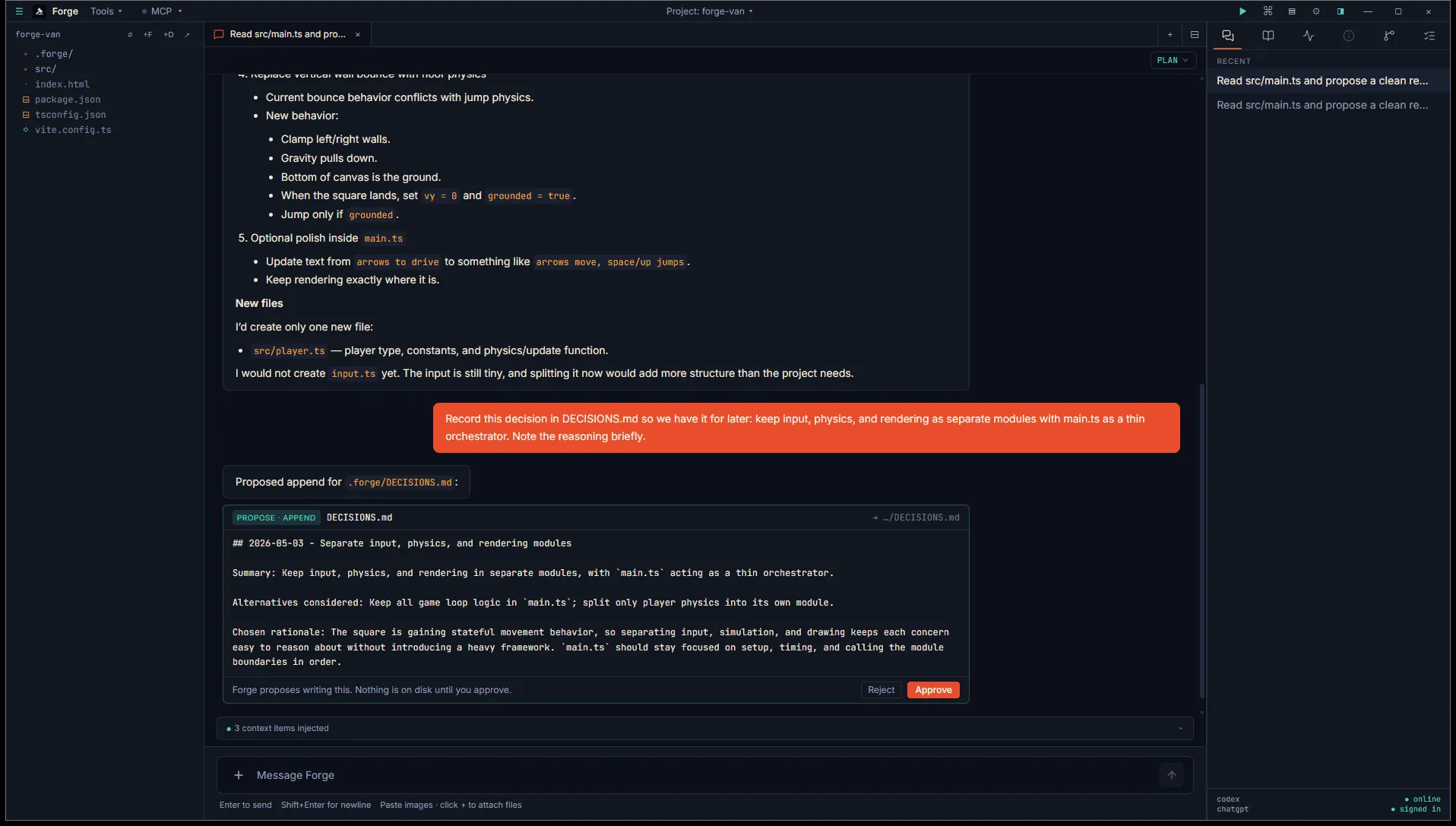
Lists every chat session in the database. Click a row to open that session in the active pane. Hover and click the × to delete a session (with a second-click confirmation to prevent accidents).
The active session is highlighted. Sessions are sorted by last-message timestamp.
Available in project mode
Section titled “Available in project mode”Memory
Section titled “Memory”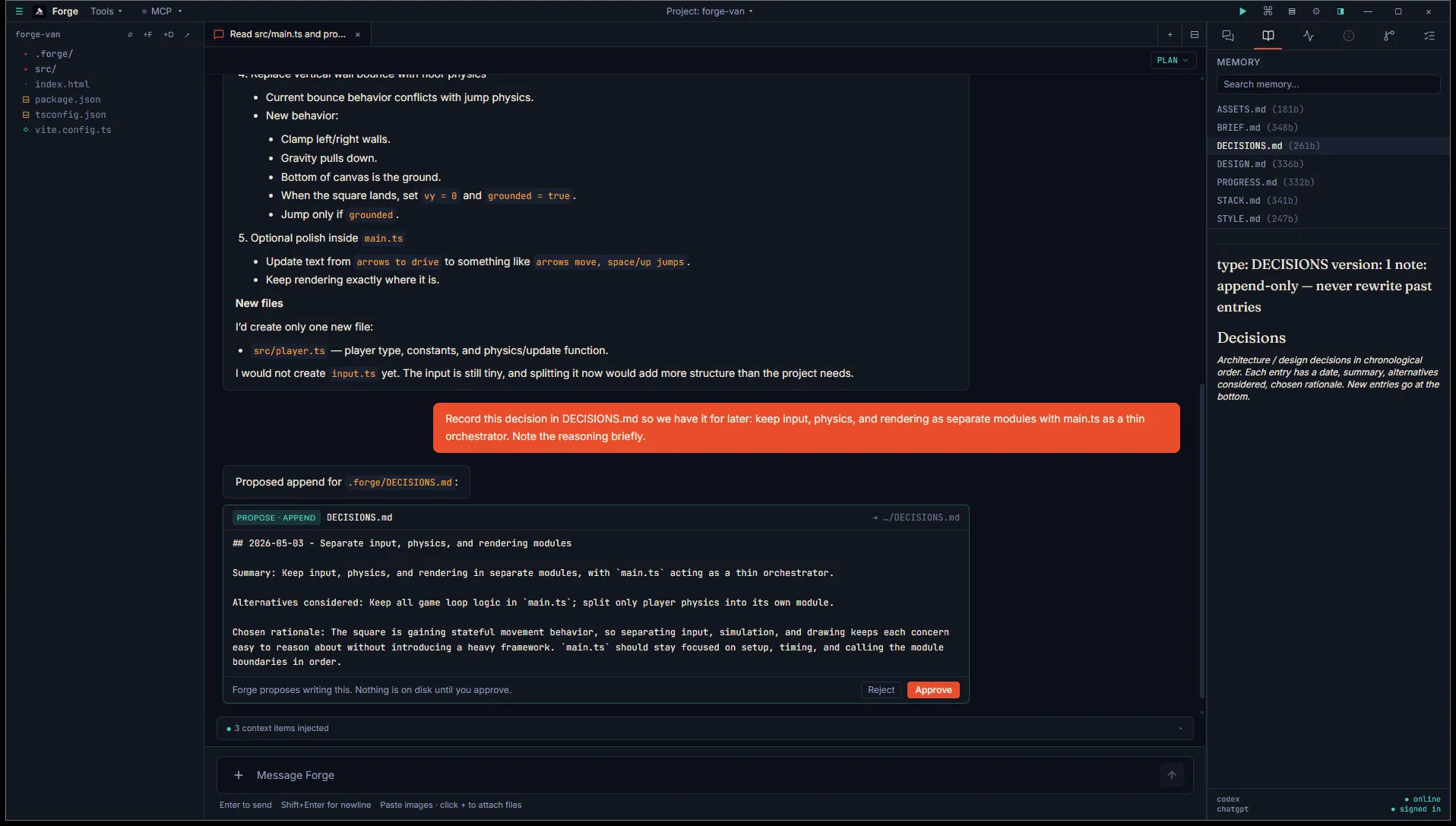
Browses the project’s .forge/*.md files. Click a file to read its rendered markdown.
A search box at the top of the tab does FTS5 keyword search across all memory files. With semantic search enabled (Settings → Memory), the same box does hybrid keyword + vector search. See Sessions and memory for the search details.
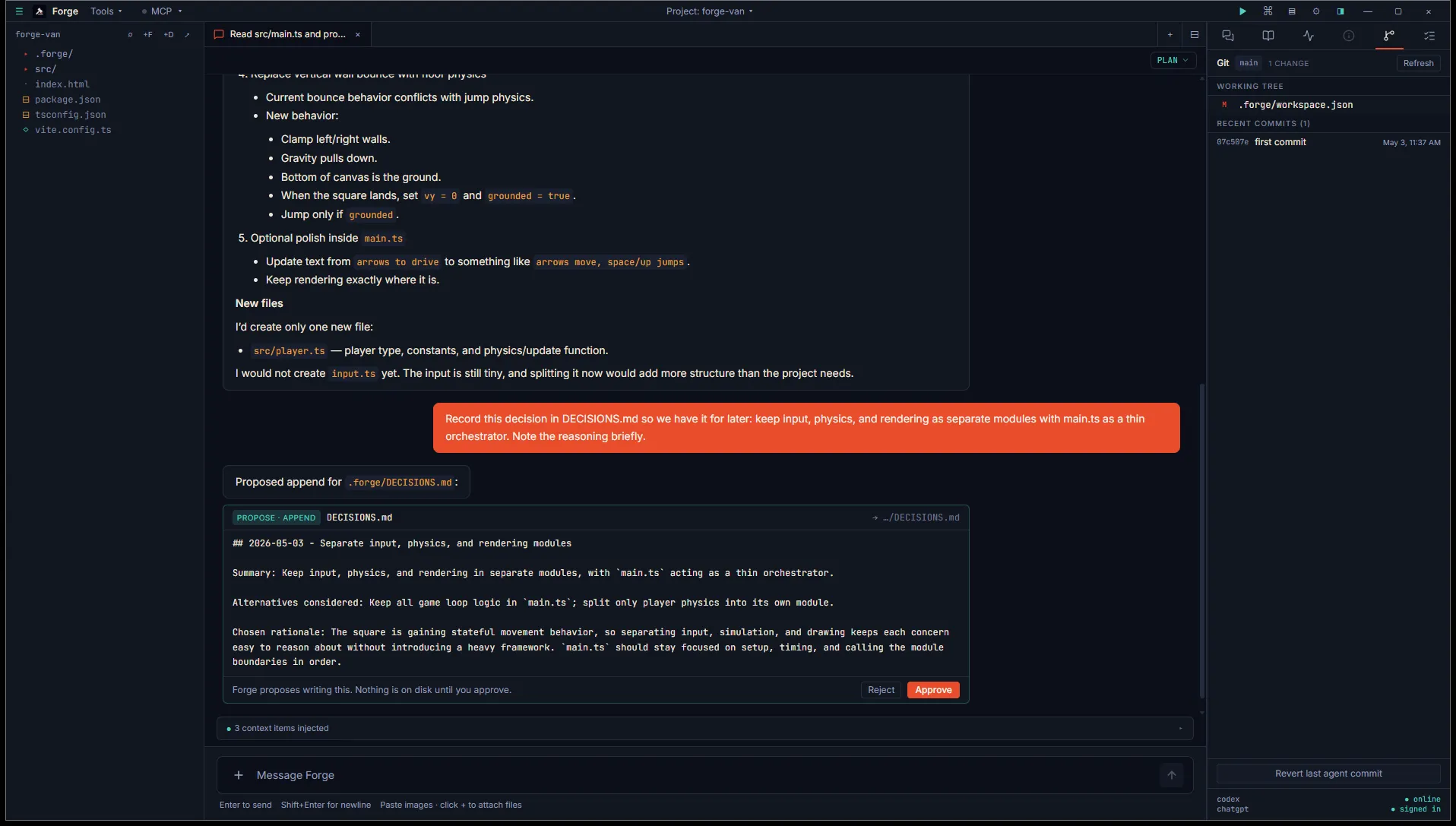
Shows current branch, working tree status (modified, staged, untracked), and the last 20 commits.
Forge-applied commits are flagged with a small badge. The Revert last agent commit button only fires if HEAD has the Forge-Applied: edit-proposal trailer; it refuses to revert your hand-authored work.
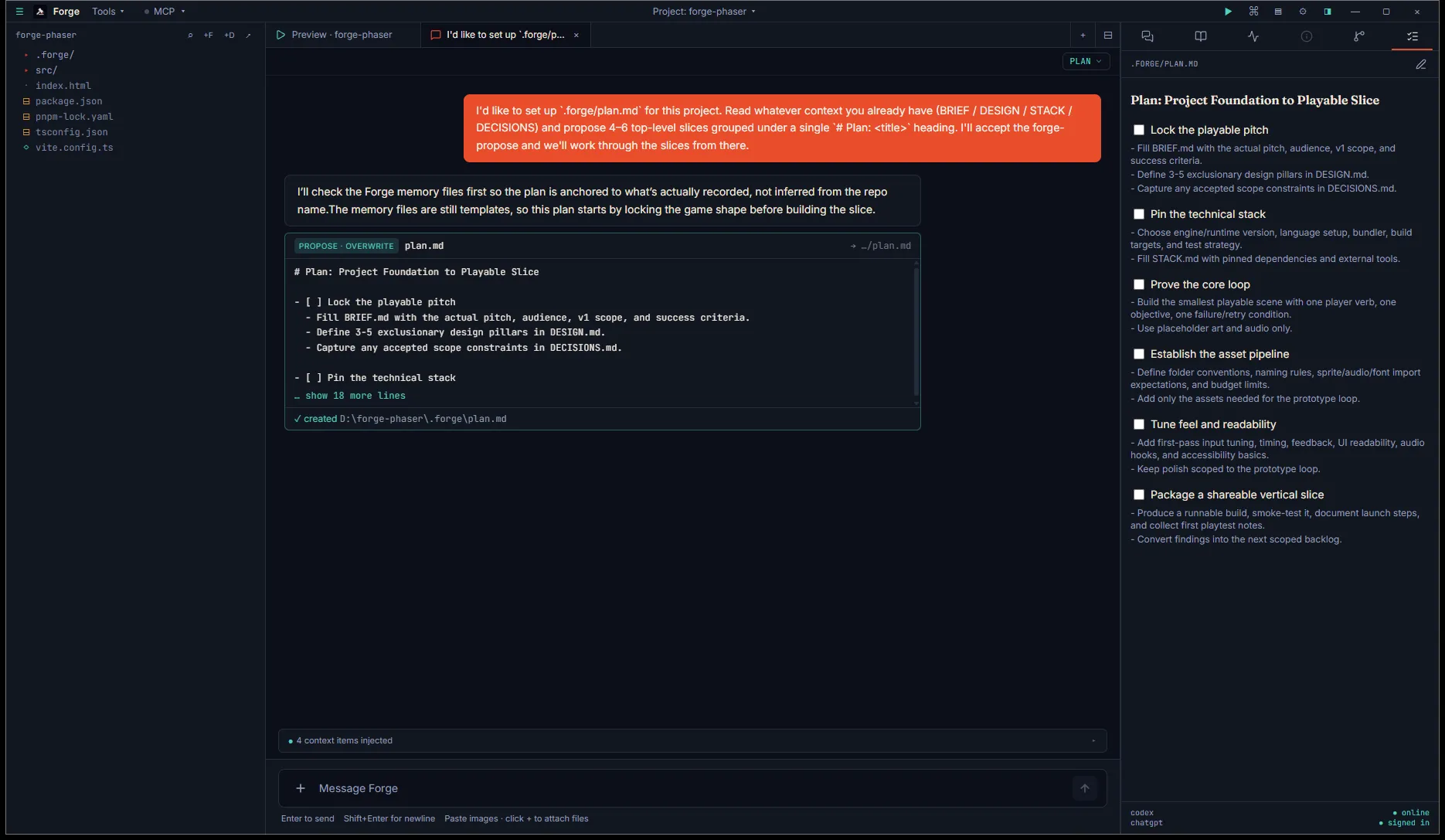
The pinned checklist for the project, sourced from <project>/.forge/plan.md. Top-level items carry stable <!-- id: p_xxxxxxxx --> comments — Forge mints them at write time so individual items can be focused on by chat tabs.
Affordances:
- Click a checkbox to toggle
[ ]↔[x]. Saves are debounced. - Hover an item to reveal a Focus crosshair on the right edge — click to open or reuse a chat pinned to that item.
+ idbutton appears next to any top-level item missing an id (e.g. one you wrote by hand). Click to mint a fresh id in place.- Mint missing ids (N) in the header tags every id-less top-level item in one pass.
N pending updatepill appears in the header when one or moreforge-proposecards targetingplan.mdare awaiting approval somewhere in the workspace.- Pencil icon switches to a raw markdown editor for free-form editing. Eye icon switches back.
If plan.md doesn’t exist, the tab shows an Ask the agent to draft a plan button — clicking it opens a fresh Plan-mode chat with a kickoff prompt asking the agent to read your project memory and propose 4–6 slices.
When every top-level item is checked, the tab surfaces a Plan complete banner with a “Start a new plan” button. Mute the banner via Settings → Workspace → Auto-suggest next plan when current plan completes.
See Plan-mode loop for the full draft → focus → tick → next-plan flow.
Systems
Section titled “Systems”Lists the systems registered in .forge/gamemanager.toml. Each row shows the canonical name (AudioManager, EventBus, ProjectConfig, etc.) and an Open button that opens the corresponding editor in a workspace tab.
The Game Manager → Open button opens the spine view: the full descriptor, startup order, and per-system editor entrypoints. See The Game Manager spine.
If the project has no descriptor yet, the tab shows a Create descriptor button. The Game Manager tab opens immediately after with an empty systems list ready for scaffolding via the gear icon above the chat composer.
Available when a chat tab is active
Section titled “Available when a chat tab is active”Timeline
Section titled “Timeline”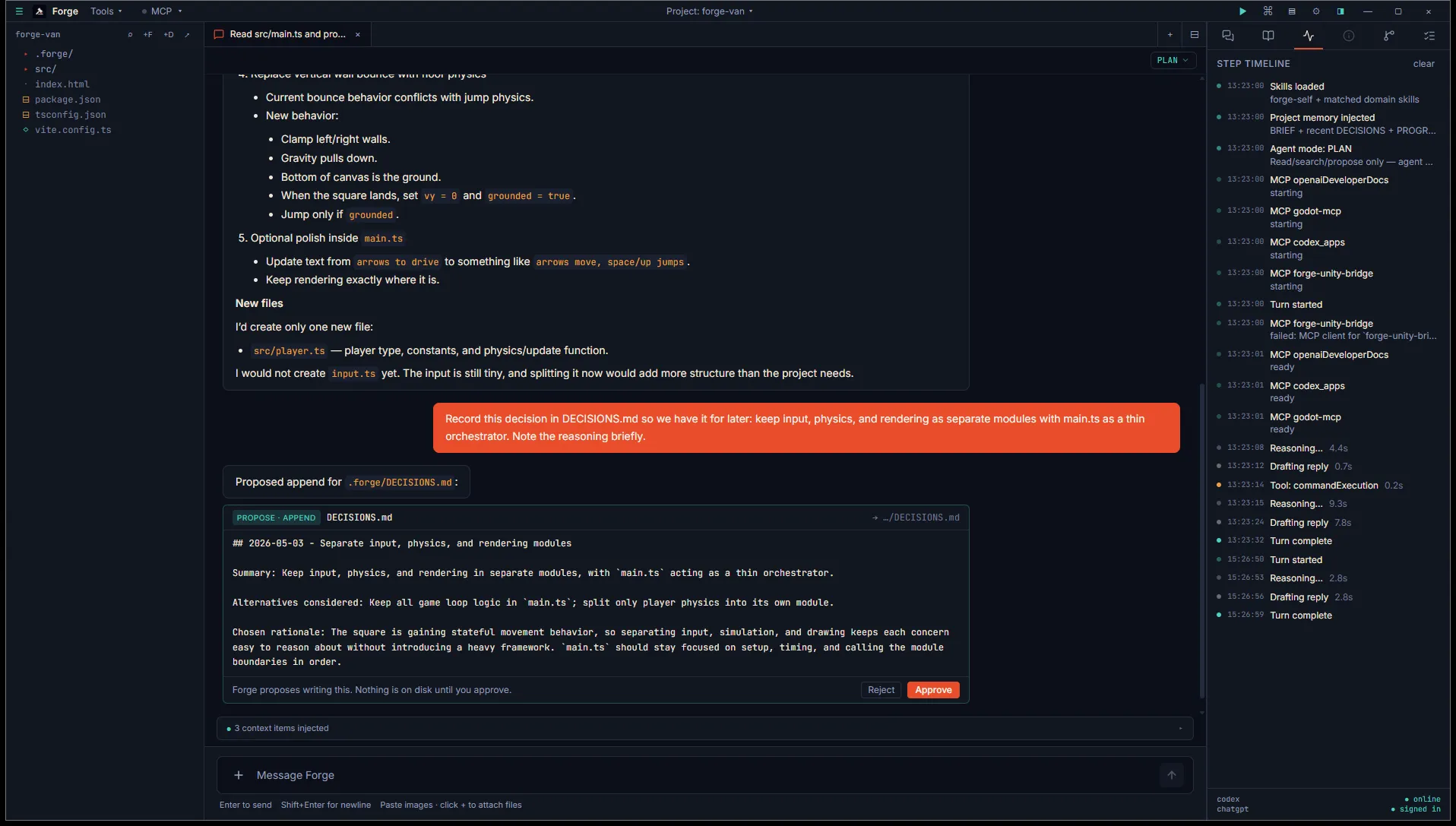
Shows the activity log for the active chat: turn boundaries, reasoning, tool calls, image generations, MCP startup, skill and memory injection markers.
Useful for debugging “why did the agent do that?” or counting how long a long-running turn actually took.
Available when a file tab is active
Section titled “Available when a file tab is active”Properties
Section titled “Properties”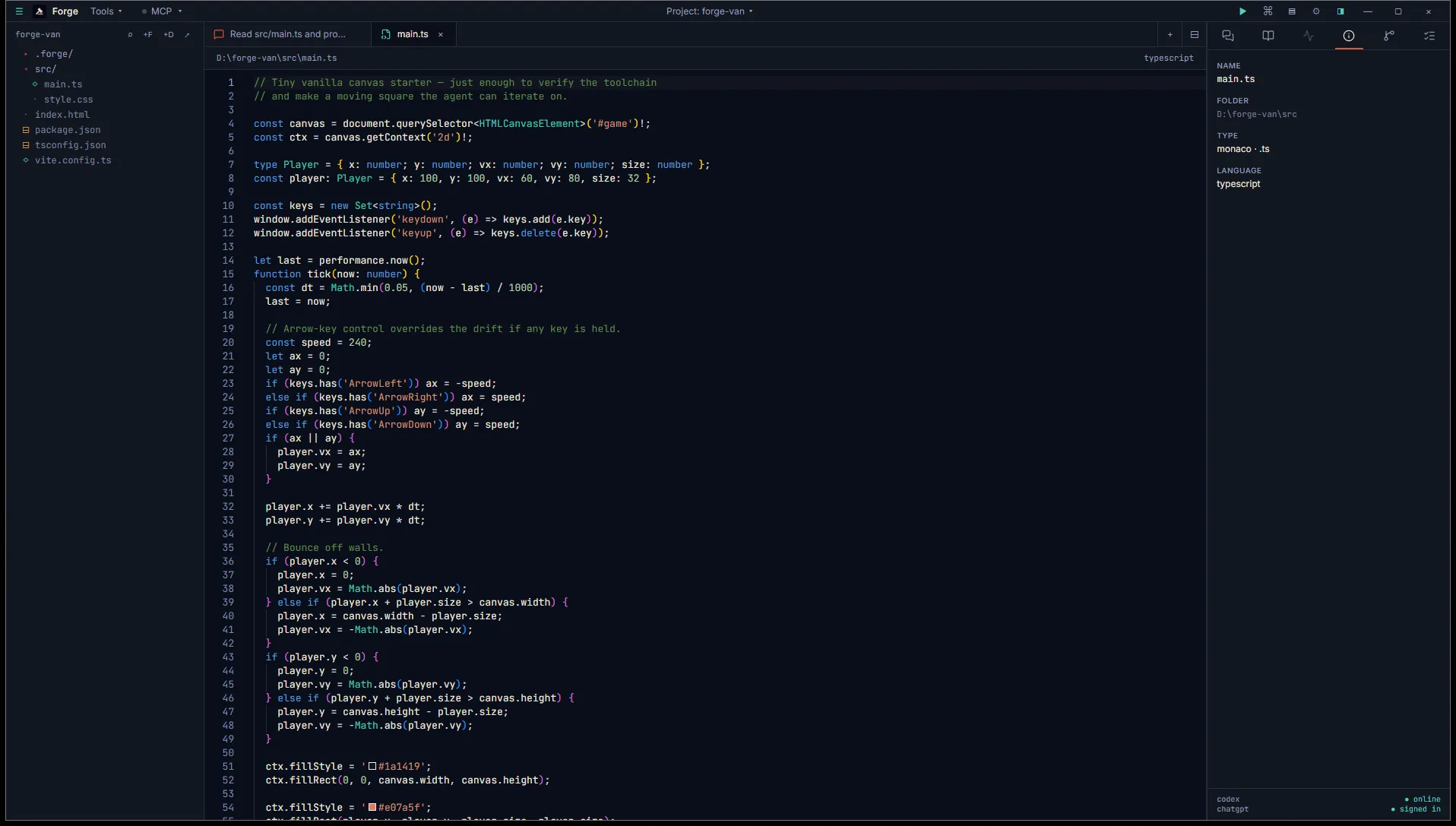
Metadata about the active file. Code: line count, encoding, modification time. Image: dimensions, file size, color depth. Audio: sample rate, bit depth, duration. Markdown: word count.
For Forge-generated images, the Properties tab also shows the original prompt and revised prompt (gpt-image-2 sometimes refines what you asked for).
Available in Godot mode
Section titled “Available in Godot mode”Renders the active .tscn file as a node tree. Nodes with attached scripts are flagged. Click a script-bearing node to open the script in Monaco. Click an instance node to drill into the sub-scene. See Scene tree inspector.
Outline
Section titled “Outline”Active when a .gd file is the focused tab. Lists class members, exported variables, methods, and signals. Click an entry to scroll Monaco to its definition. See GDScript outline.
Available in Unity mode
Section titled “Available in Unity mode”Hierarchy
Section titled “Hierarchy”Live scene tree from the connected Unity Editor. Click a node to ping-select it in Unity. Auto-refreshes on hierarchy_changed events from the bridge.
Console
Section titled “Console”Live Debug.Log, warning, and error stream from the Unity Editor. Filter by level.
The Inspector tab is sticky. If you switch from a chat tab to a code file, the active tab stays put unless it becomes disabled (Memory and Git only enable in project mode, Timeline only on chat tabs, etc.). When the current tab becomes disabled, Forge falls back to Sessions.
Tab visibility is determined at render time from the active workspace tab and project state. There’s no separate “show/hide” config for Inspector tabs. Engine-conditional tabs (Scene, Hierarchy, Console, Outline) appear and disappear automatically.