
Plan-mode loop
Plan mode in Forge is more than a tool-restriction switch. It’s a working loop:
- You ask the agent to draft
.forge/plan.mdfor the project. - You accept the proposal. Forge tags every top-level item with a stable id.
- You focus a chat on a specific item, or click Run plan to walk the whole list autonomously.
- The agent works the item, proposes a
forge-proposeticking the box, you accept. The Plan tab refreshes; on the autonomous path the next item kicks off automatically. - When every item is checked, the Plan tab surfaces a “Plan complete — start a new one?” banner with a kickoff button.
The Plan tab in the Inspector is the visible face of this loop. .forge/plan.md is the data.
Draft a plan
Section titled “Draft a plan”Open the Plan tab in the Inspector. If the project doesn’t have a .forge/plan.md yet, the tab shows the empty state with a single primary CTA: “Ask the agent to draft a plan”.
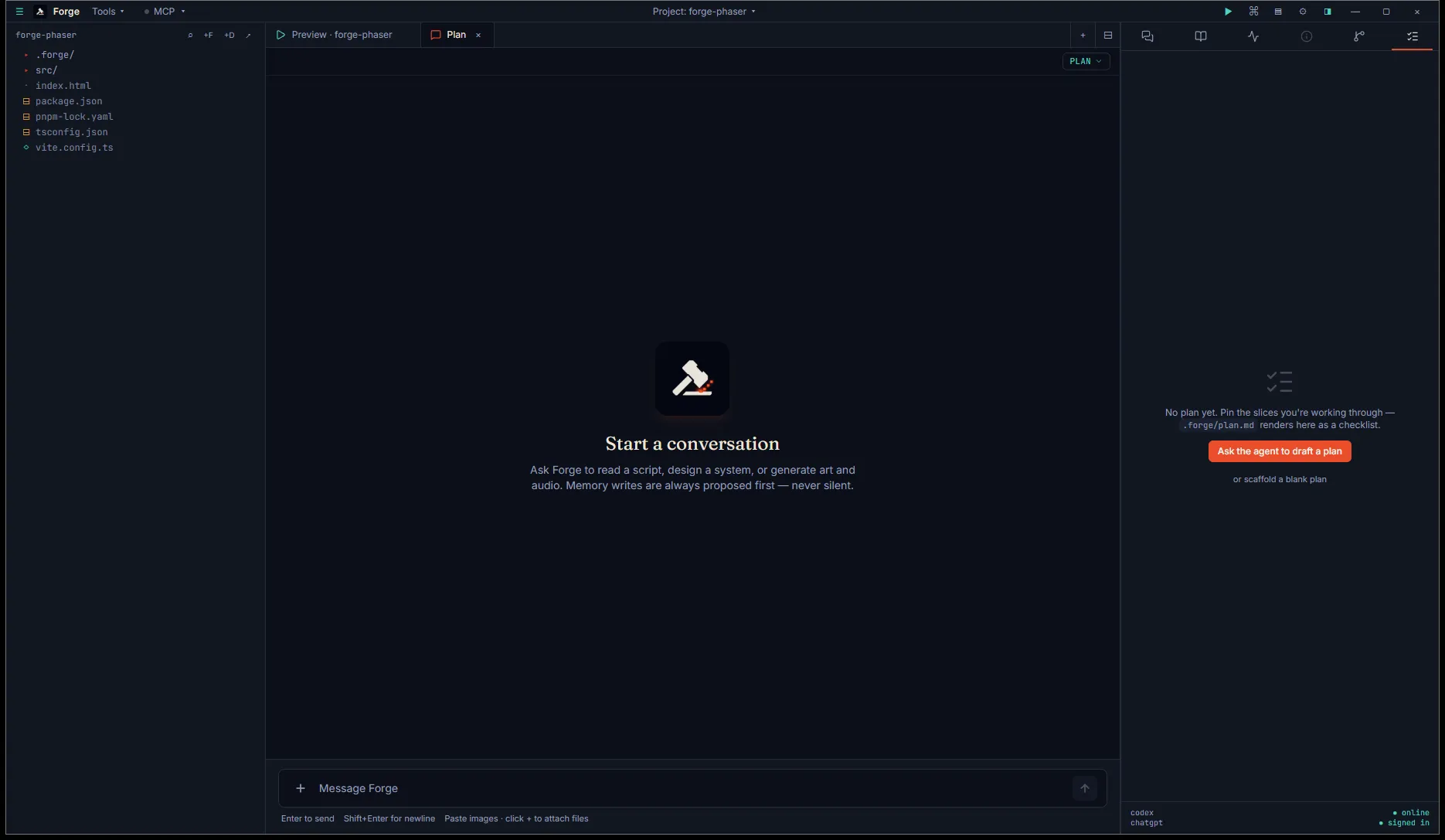
Click it. Forge opens a fresh chat tab in Plan mode with a kickoff prompt already typed in the input — something like “I’d like to set up .forge/plan.md for this project. Read whatever context you already have (BRIEF / DESIGN / STACK / DECISIONS) and propose 4–6 top-level slices grouped under a single # Plan: <title> heading.”
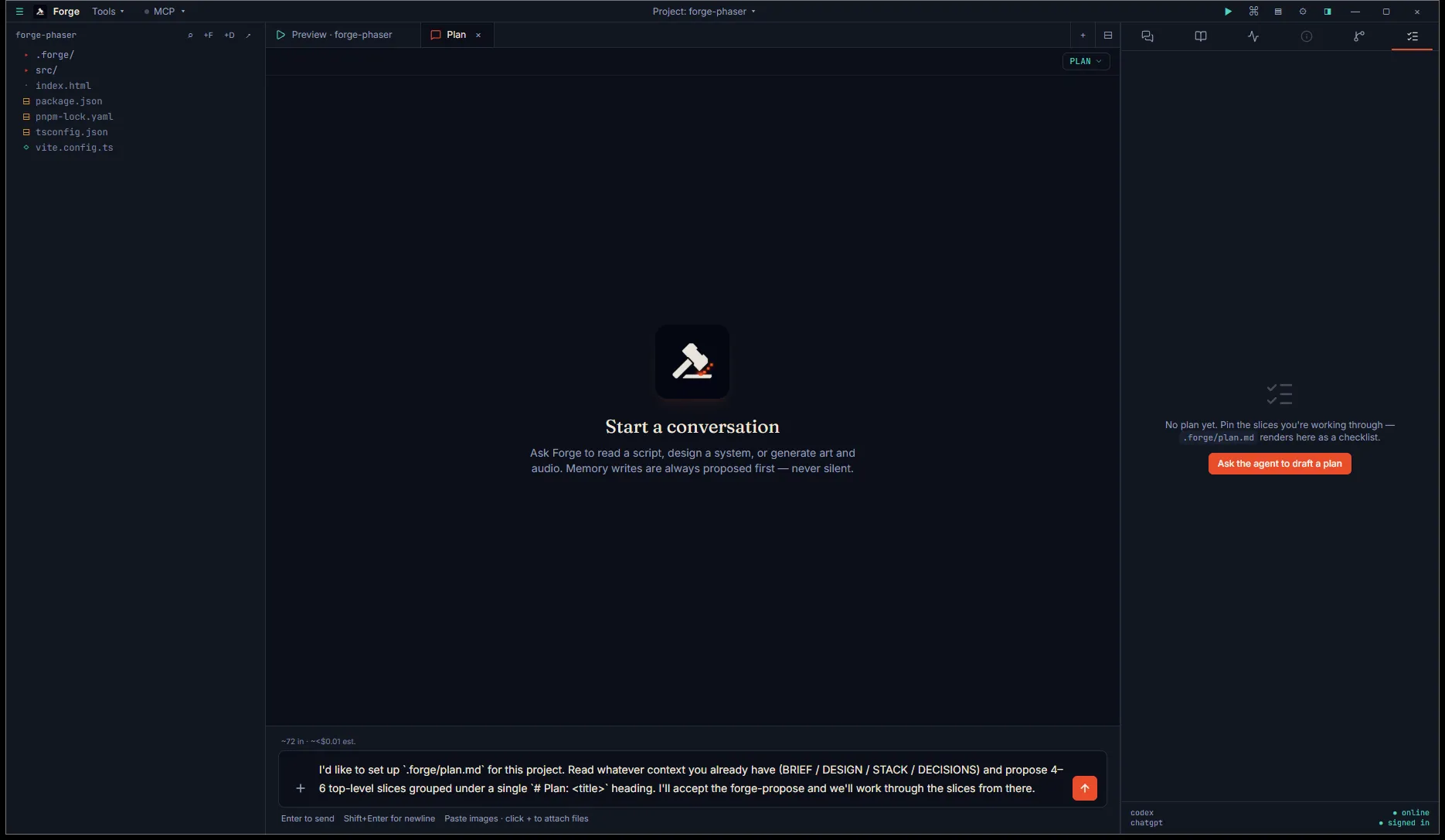
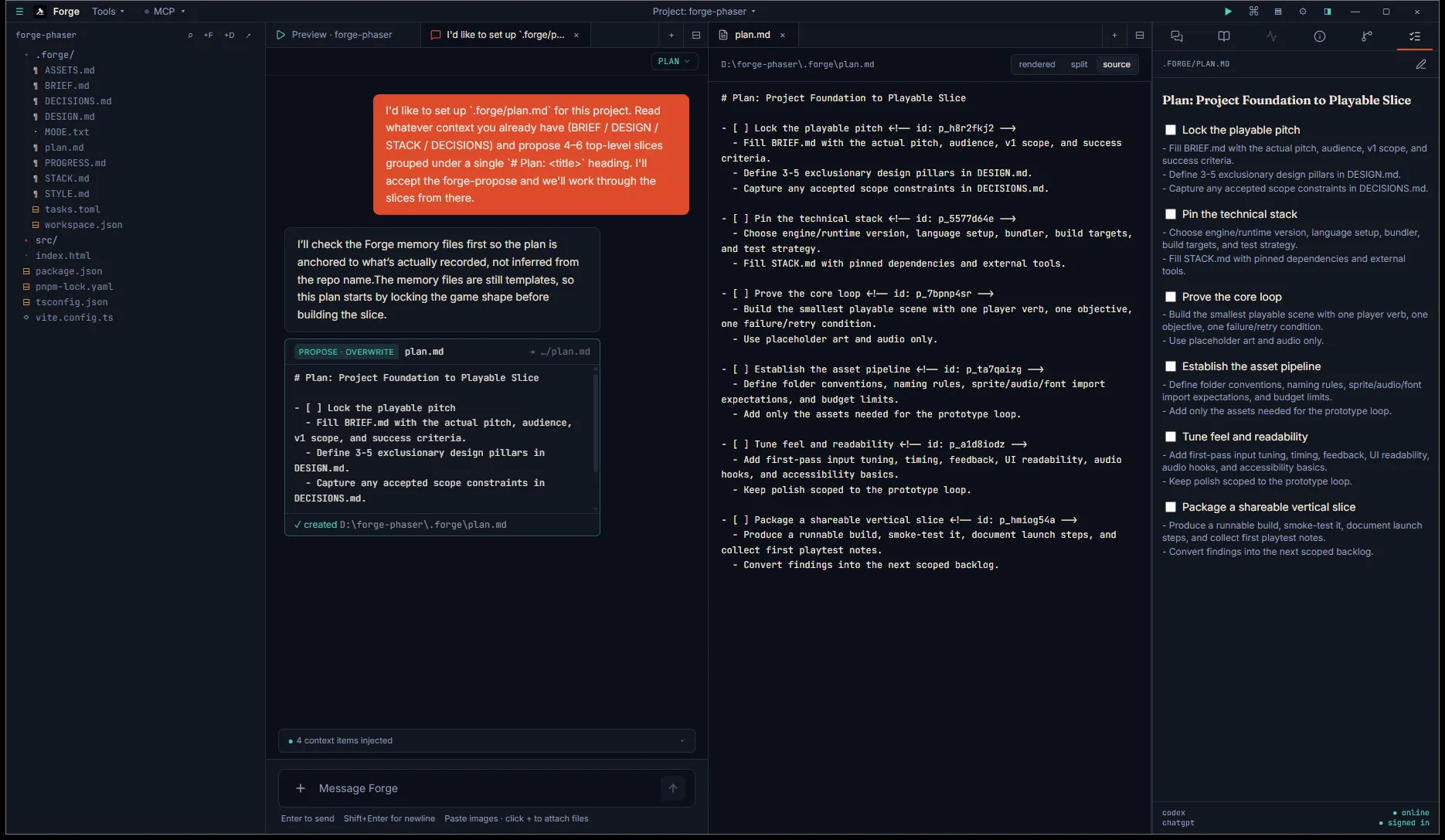
Hit Enter. The agent reads your existing memory files and replies with a forge-propose · overwrite block targeting plan.md.
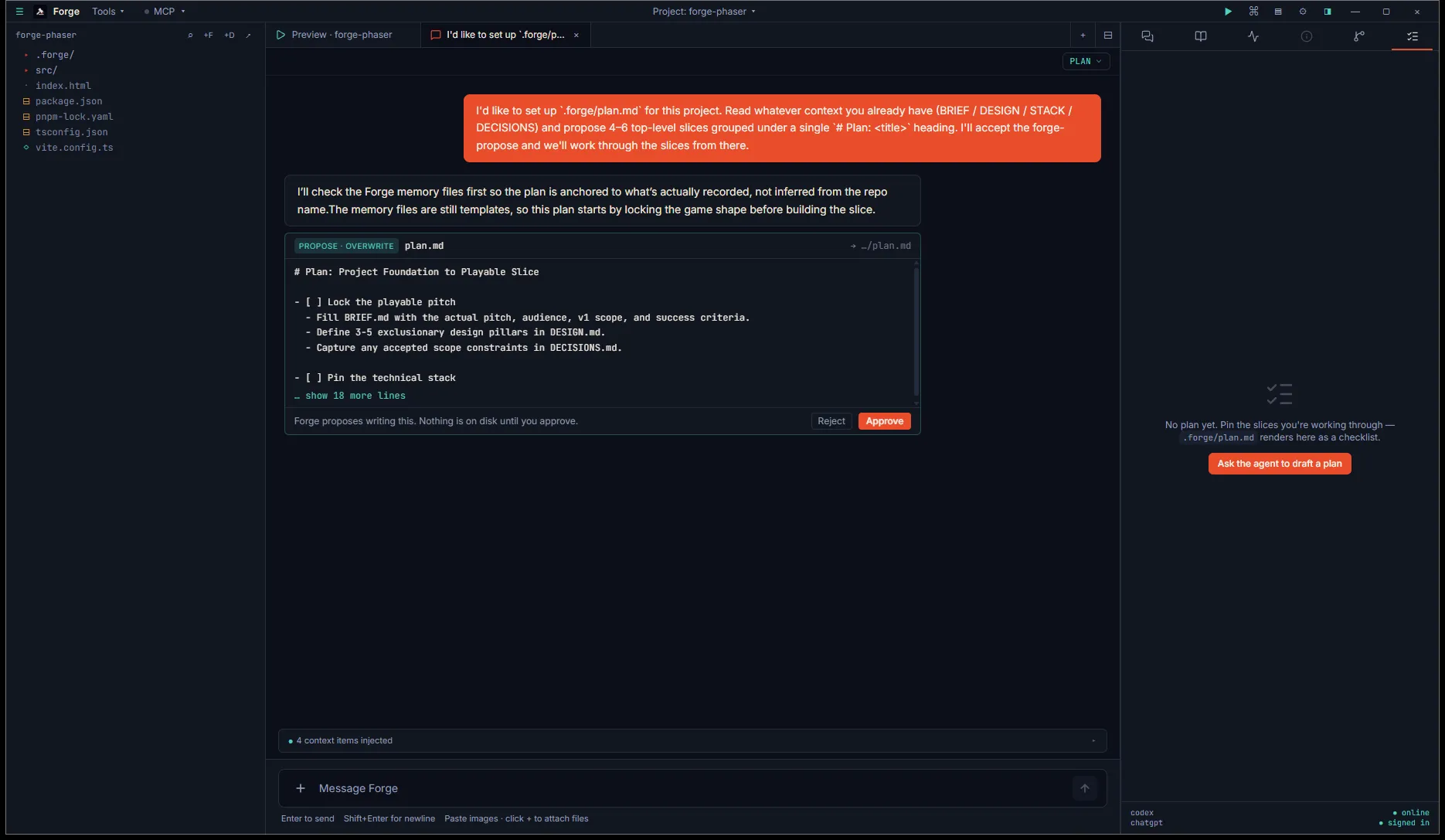
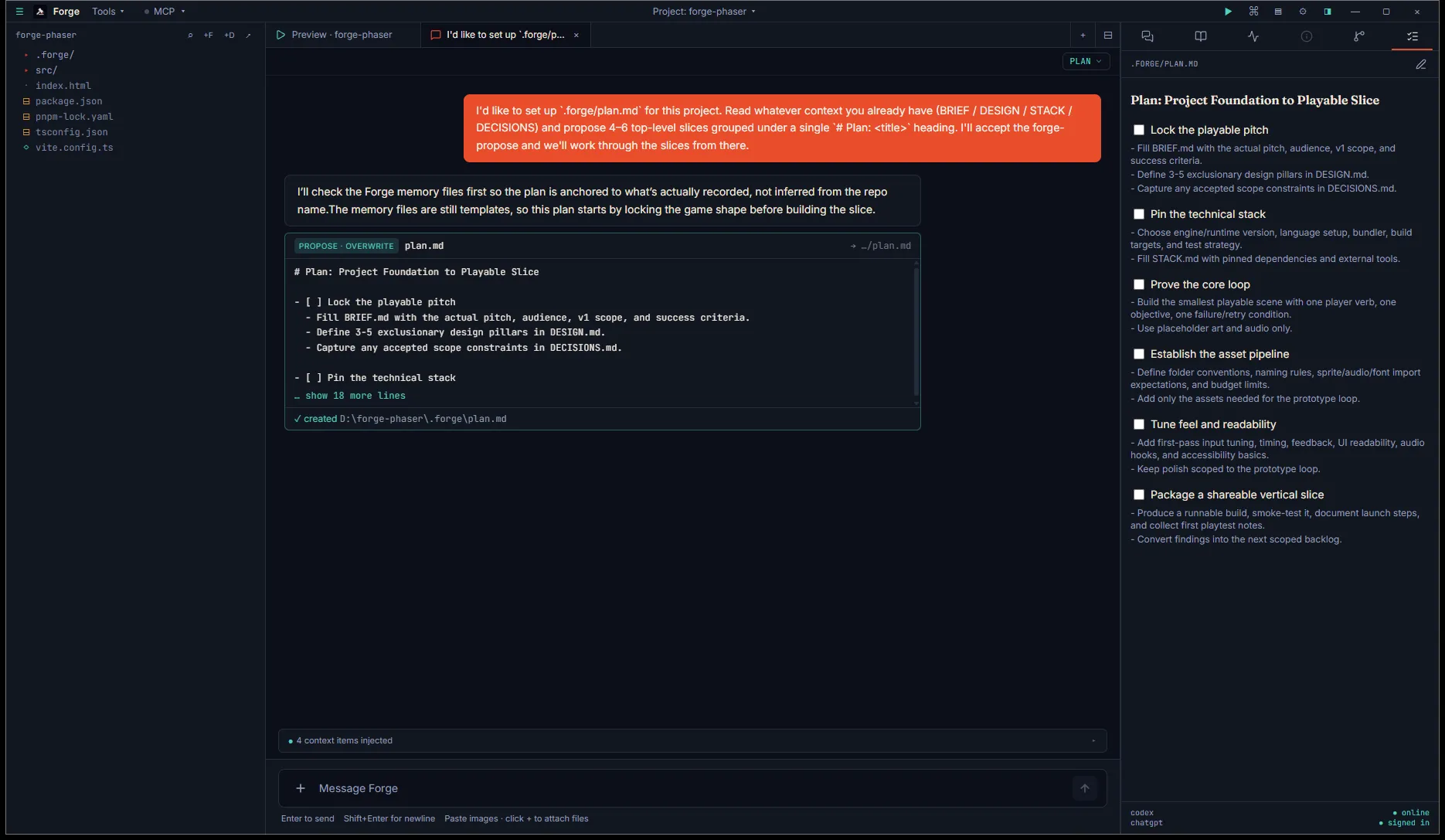
Approve. Two things happen at write-time:
- Forge mints stable ids for every top-level item (
<!-- id: p_xxxxxxxx -->HTML comments) before the bytes hit disk. The agent never touches ids — Forge owns them so they survive hand-edits and the agent forgetting the format. - The Plan tab auto-refreshes as soon as the file lands. No need to switch projects or reopen the tab.
Open .forge/plan.md in the editor (file tree → .forge/ → plan.md) and you’ll see the auto-minted ids inline:
Focus a chat on an item
Section titled “Focus a chat on an item”Hover any top-level item in the Plan tab. A small crosshair button fades in on the right edge of the row — the Focus affordance.
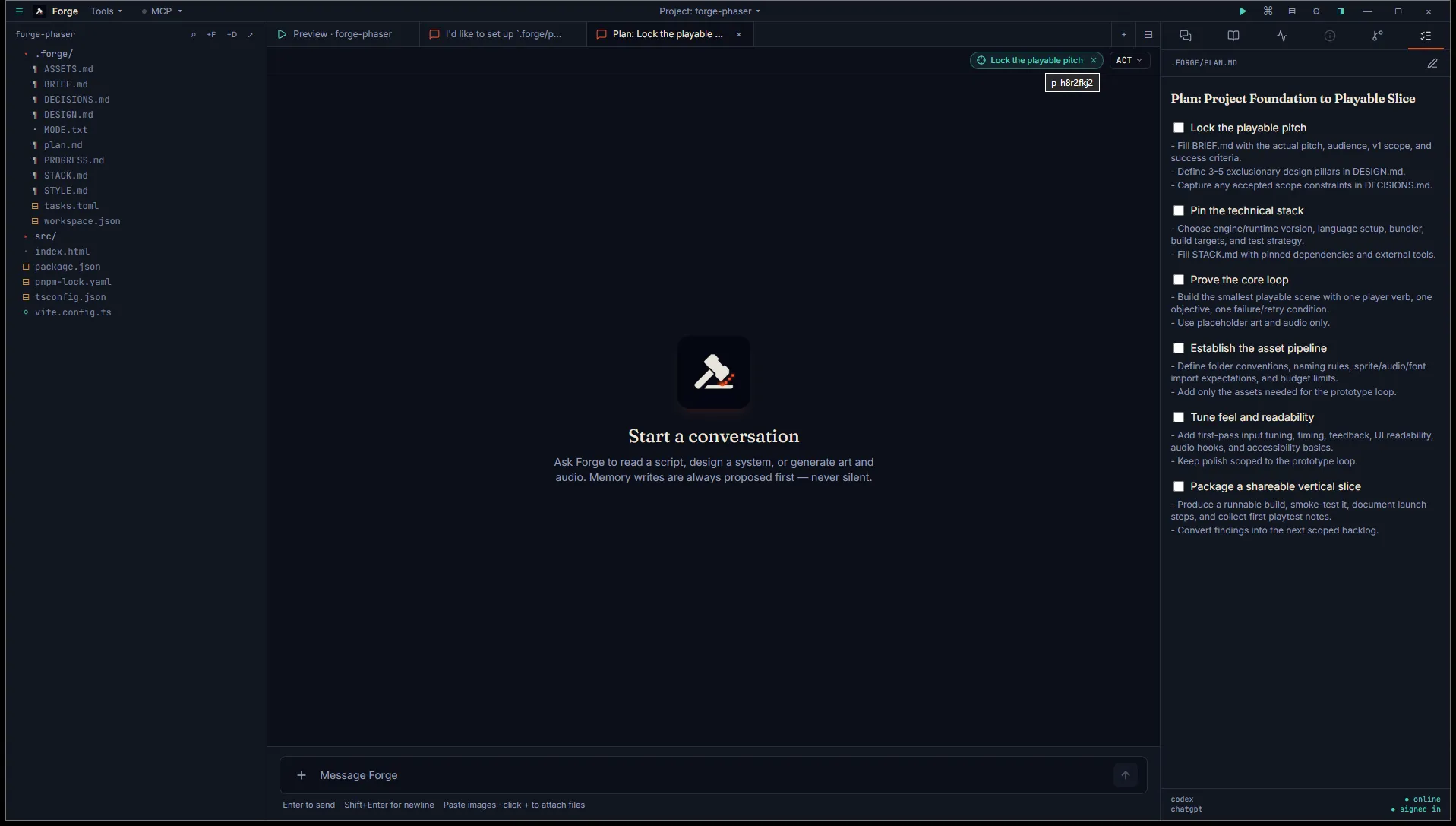
Click it. Forge opens a new chat tab titled “Plan: <item title>”, pinned to that item. The chat header shows a small badge — Pinned: <item title> × — to remind you which item the agent is scoped to.
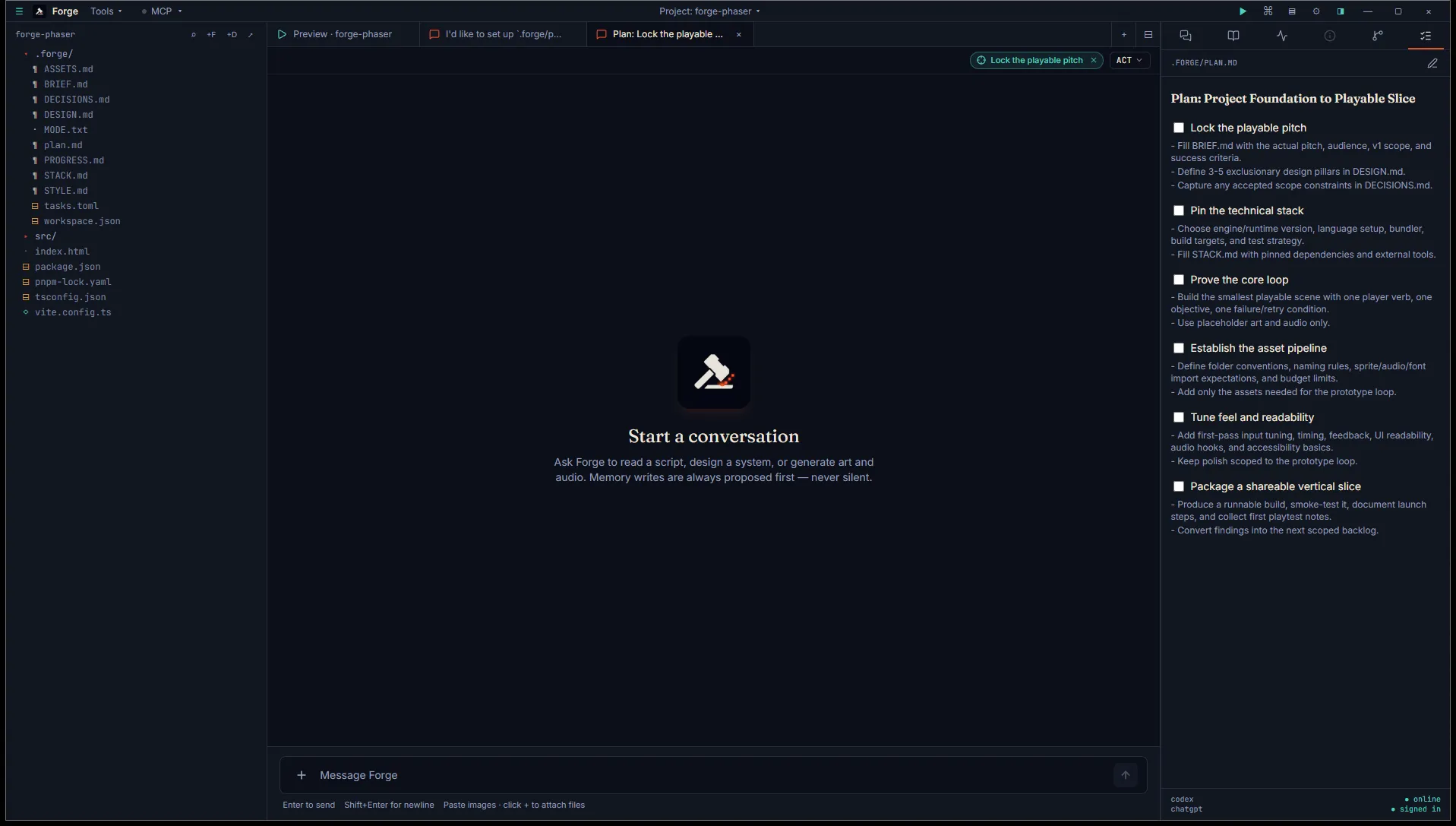
The pinned chat starts in Act mode by default — focused chats are for execution, not re-planning. You can flip the chip to Plan if you want the agent to sub-plan the item before doing the work.
The agent on a focused chat sees a <focused_plan_item id title>…body…</focused_plan_item> block injected on every turn. It treats that as the scope of the conversation. When the work is done, it proposes a forge-propose against plan.md to tick the checkbox.
You can also reach the Focus action from the command palette — press Ctrl+Shift+P, type plan, and pick the item.
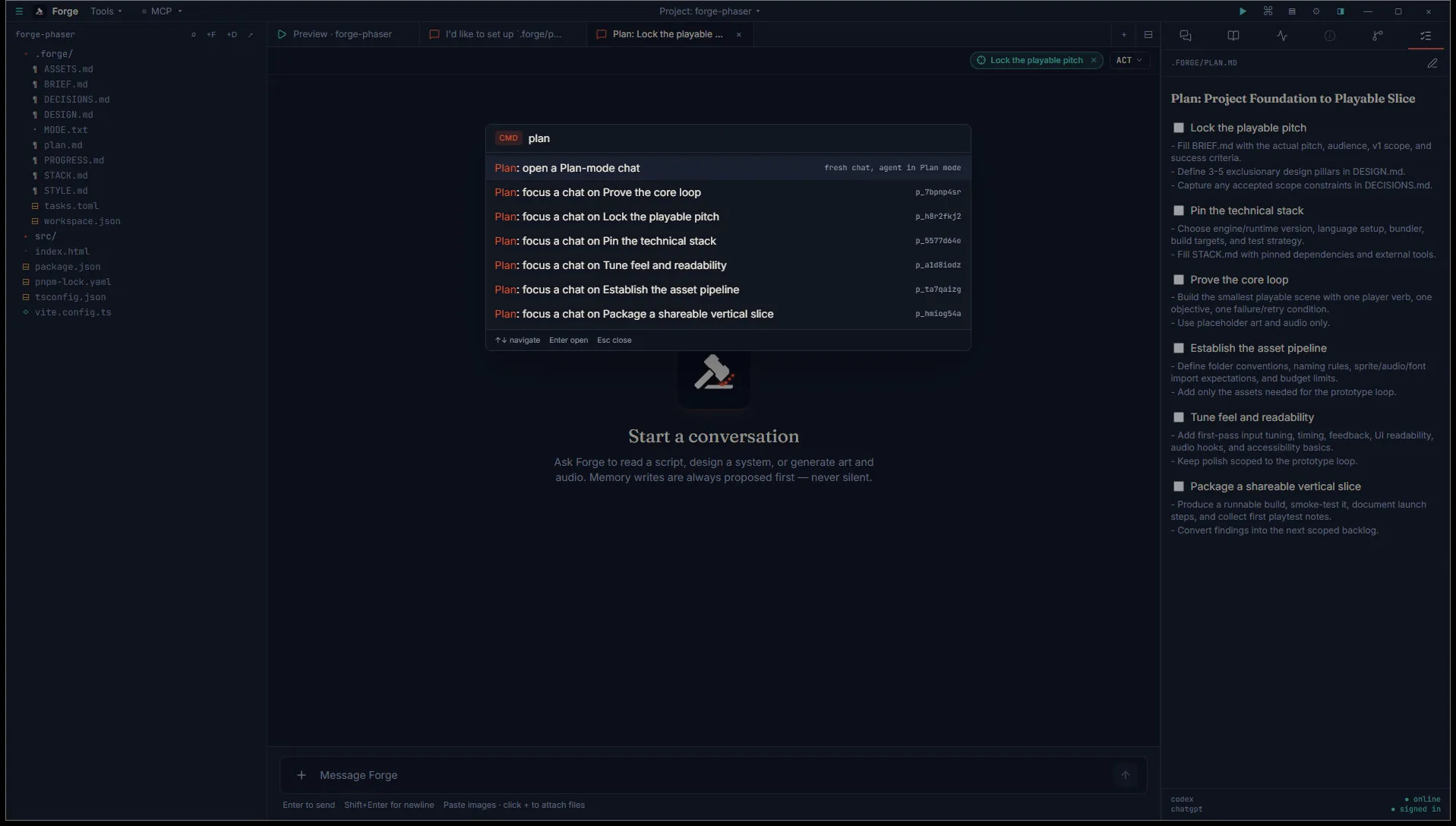
The palette also has a “Plan: open a Plan-mode chat” entry that opens a fresh chat in Plan mode with no item pinned — useful for re-planning the whole list.
If you want to drop the focus on an existing pinned chat, click the × on the badge in the header. The chat stays open, the developer-instructions block stops shipping, and you have a normal chat again.
Run the loop autonomously
Section titled “Run the loop autonomously”Once .forge/plan.md has at least one unchecked top-level item with a stable id, the Plan tab header gains a Run plan button.
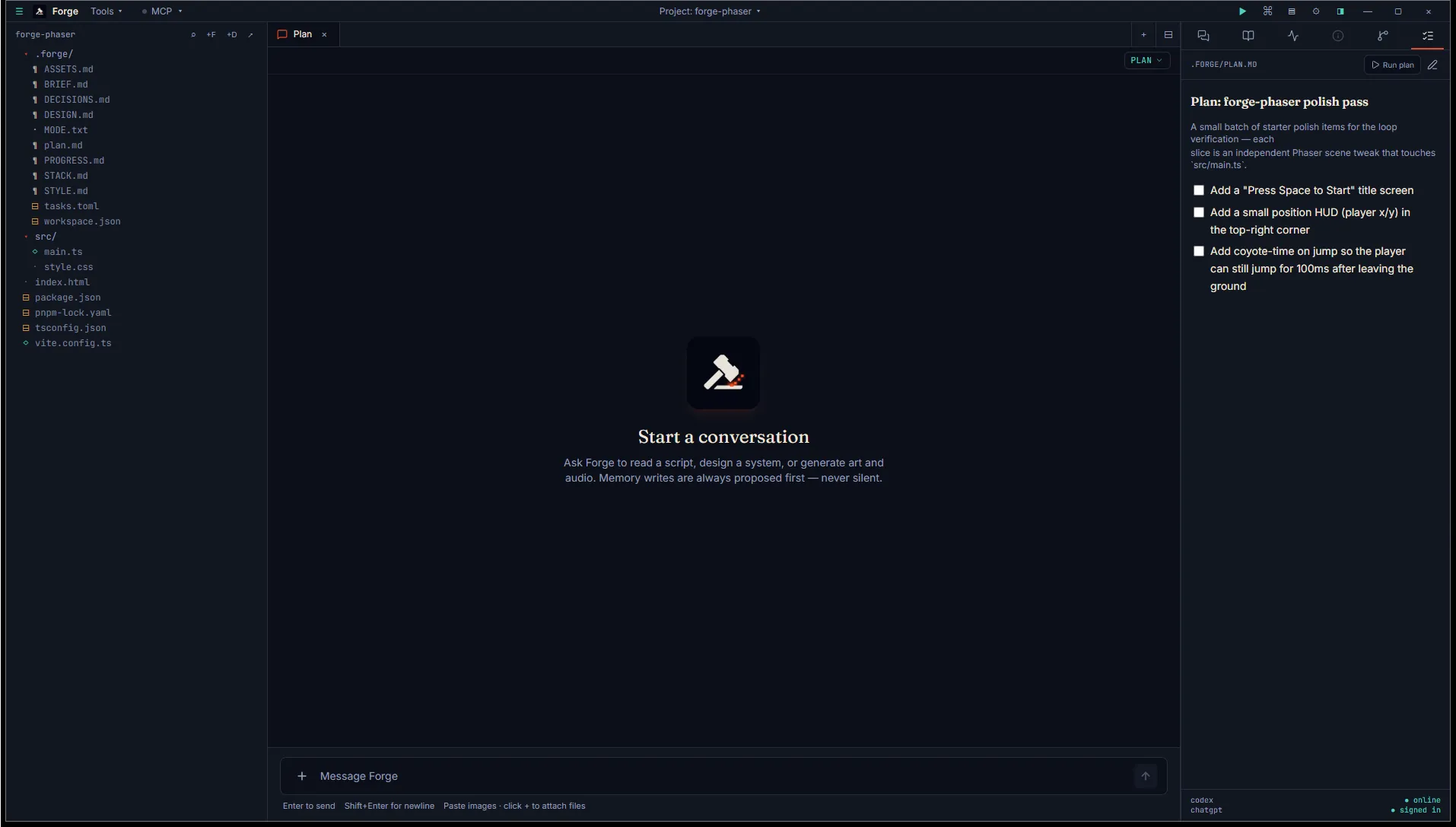
Click it. Forge takes over the manual focus → kickoff → wait → accept → focus next loop:
- The first unchecked top-level item with an id is picked.
- A focused chat opens (or reuses an existing one for the same item) titled
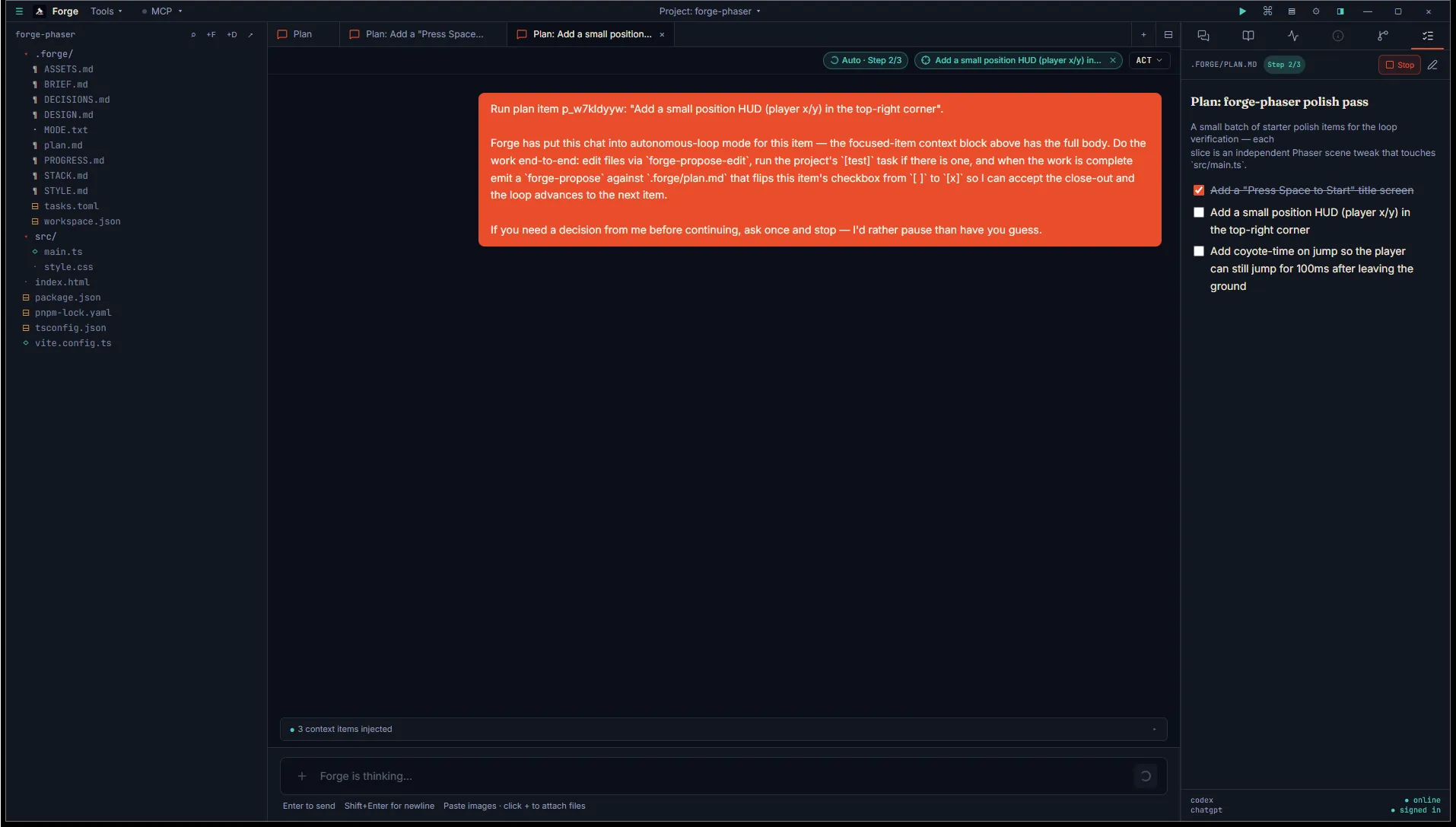
Plan: <item title>, in Act mode. - A kickoff prompt is auto-sent to the chat — “Run plan item p_xxxxxxxx: '
- '. Forge has put this chat into autonomous-loop mode for this item…”
— telling the agent to do the work end-to-end and propose the tick when done. - While the loop is running, the chat header shows an Auto · Step N/M pill (with a spinner) and the Plan inspector header shows a matching Step N/M pill plus a red Stop button.
The agent works the item using the regular forge-propose-edit flow — same per-hunk diff cards you’d see in any other Act-mode chat. When it’s done, it emits a forge-propose against .forge/plan.md flipping the item from [ ] to [x].
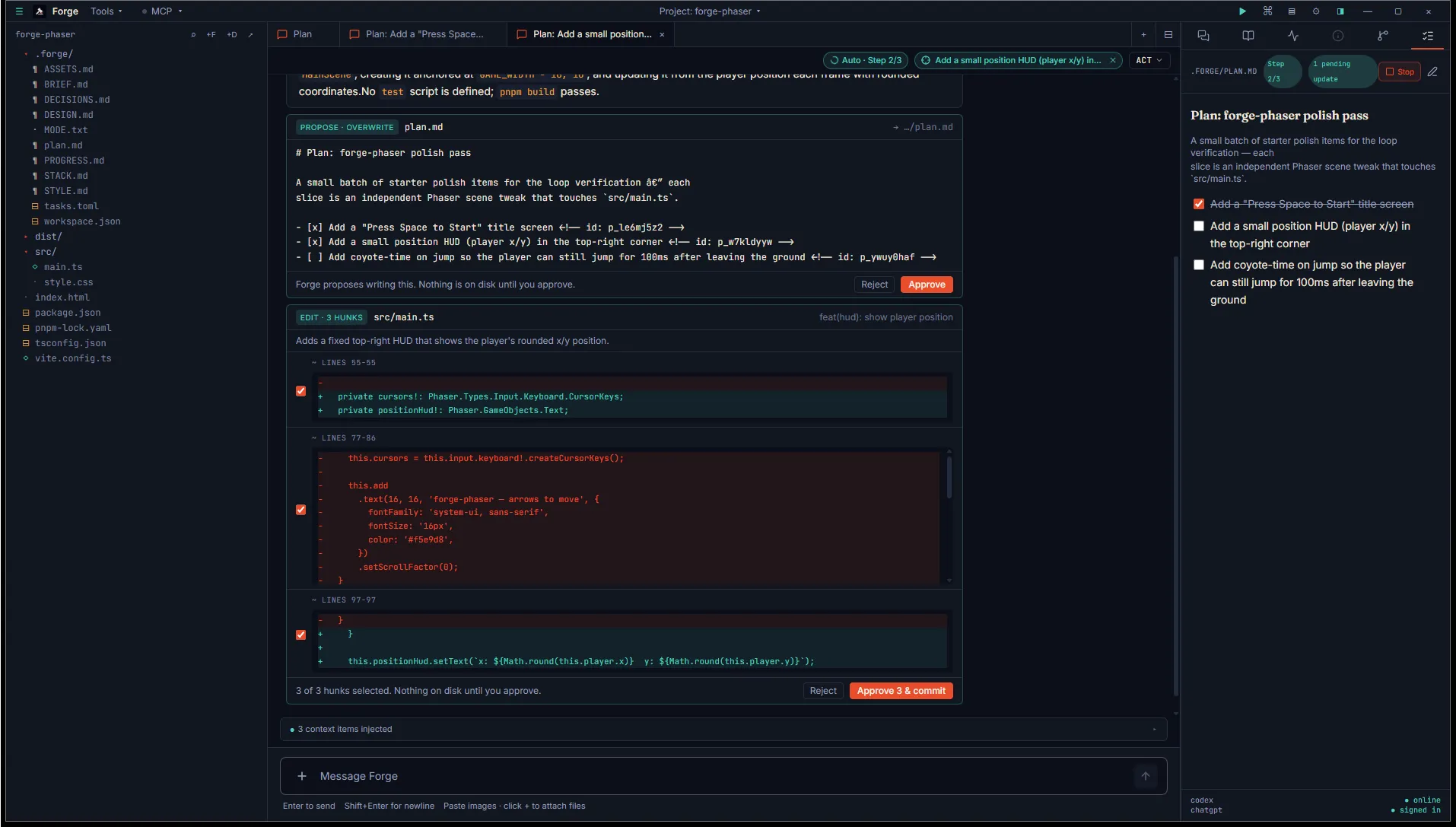
You approve each card as it lands — this per-step approval is the loop’s only safety gate. Forge does not auto-approve anything. When the plan.md tick is approved, the planStore reload fires, the inspector sees the item flip to checked, and the loop advances to the next item: a fresh focused chat is opened with its own kickoff prompt. The previous focused chat is left where it is so you can scroll back through what just happened.
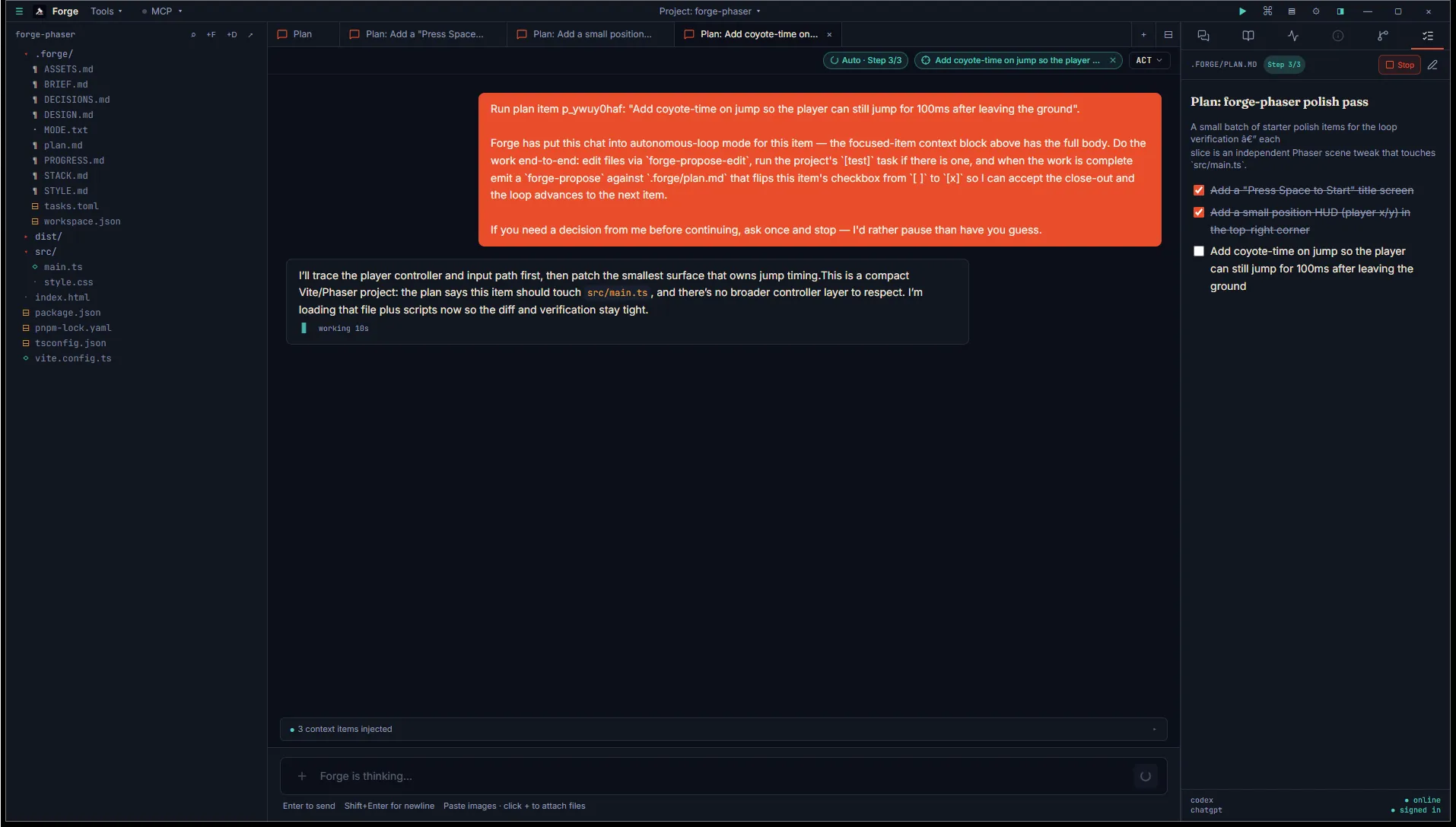
If a step needs your judgement before continuing, the agent is instructed (via forge-self.md) to ask once and end the turn. The loop pauses naturally — no advance happens until you respond and the agent eventually proposes the tick. Same effect if you just want to take a break: leave the proposal unaccepted, and the loop sits exactly where it is.
To stop the loop entirely, click Stop in the inspector header. The focused chat tabs the loop opened stay where they are; only the loop’s internal “currently running” state is cleared. You can pick up any of those chats manually afterwards.
When every top-level item has been ticked, the loop transitions to complete and the Plan inspector renders the standard “Plan complete” banner (covered in the next section).
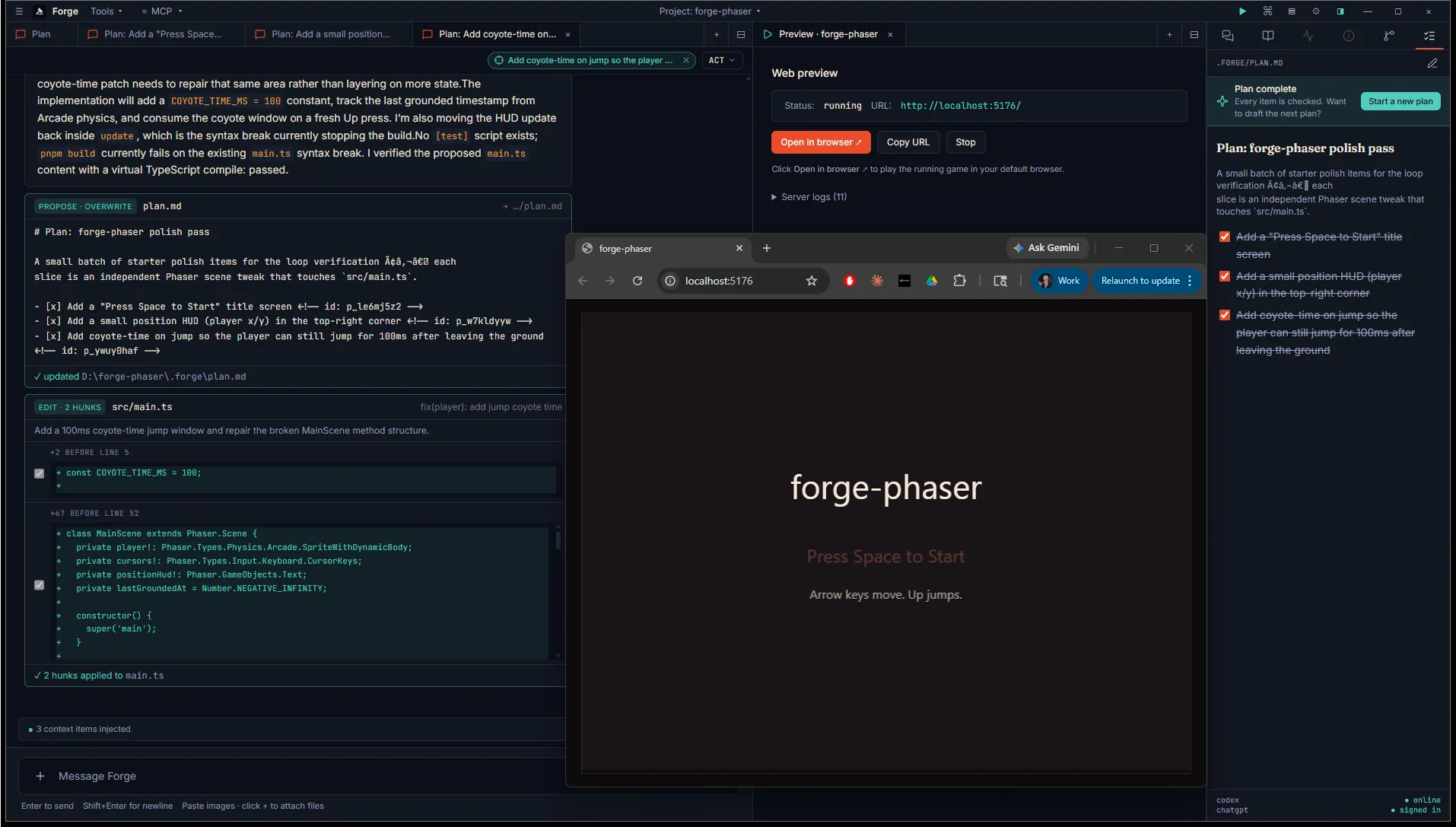
That’s the loop. The agent built three independent slices end-to-end (title screen, position HUD, coyote-time), each one a reviewable git commit, with you approving the diffs as they landed.
Tick items off
Section titled “Tick items off”When the agent finishes work on a focused item, it emits a forge-propose · overwrite against plan.md that flips the item’s [ ] to [x] and preserves the existing <!-- id: ... --> comment verbatim. While the proposal sits unactioned, the Plan tab header shows a small N pending update pill so you don’t lose track of cards that need approval.
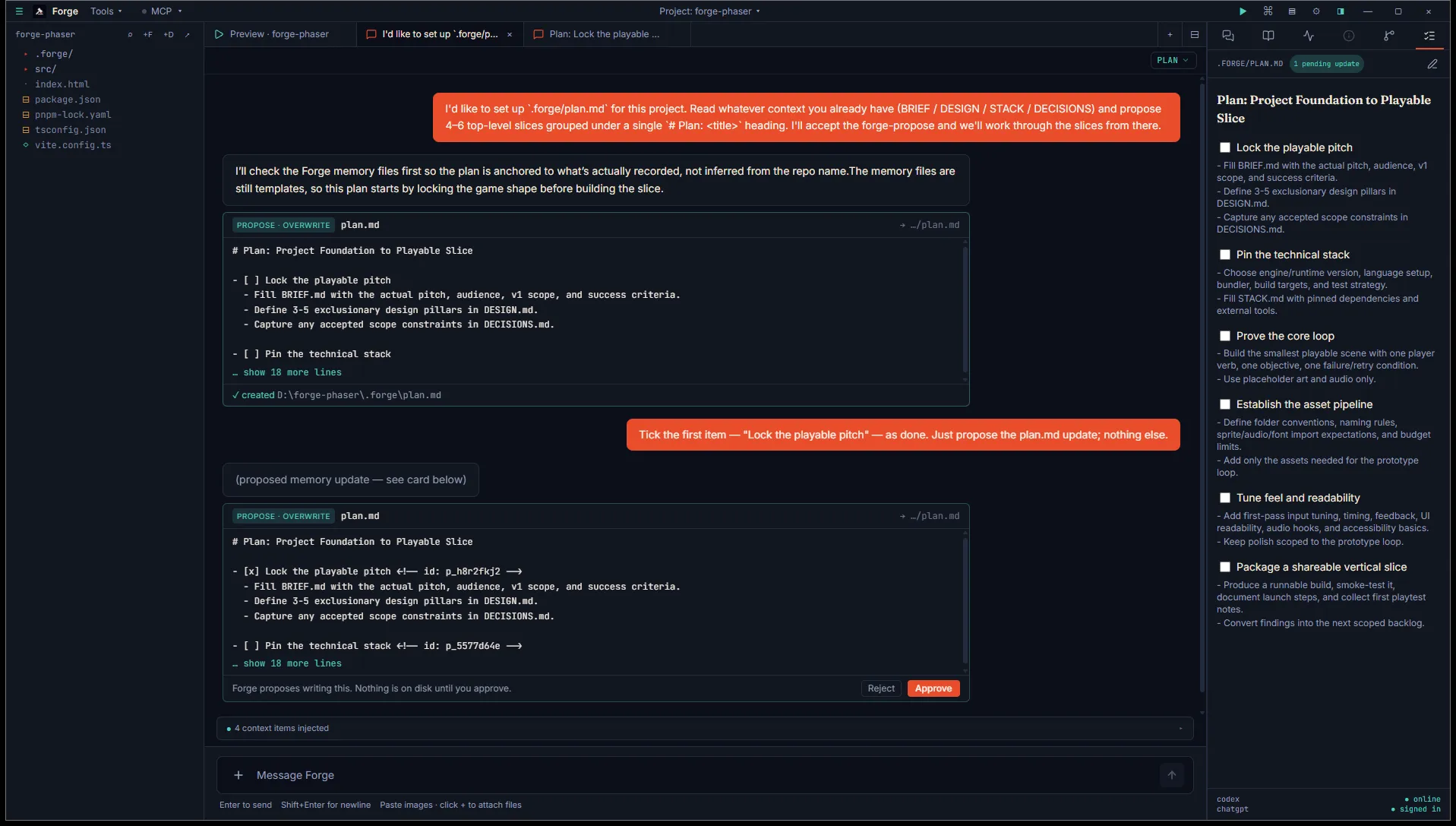
Approve, the file updates, the inspector re-reads, and the checkbox flips. Move to the next item.
Plan complete
Section titled “Plan complete”When every top-level item is checked, the Plan tab renders a banner above the checklist:
Plan complete — Every item is checked. Want to draft the next plan?
[Start a new plan]
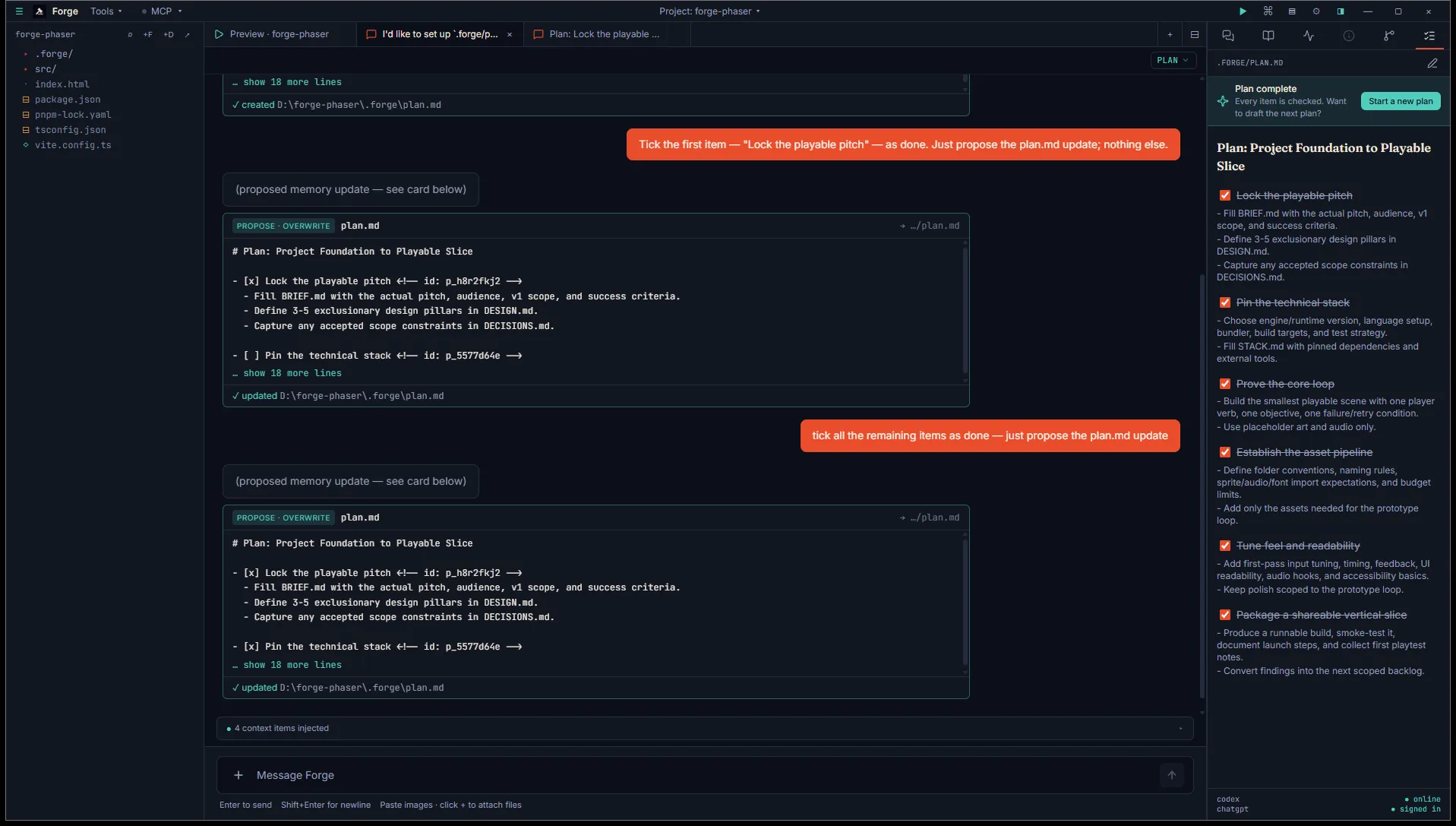
The Start a new plan button opens a Plan-mode chat seeded with a “the previous plan is done — propose the next one” kickoff. The agent reads what just shipped and proposes the next plan as a fresh forge-propose · overwrite.
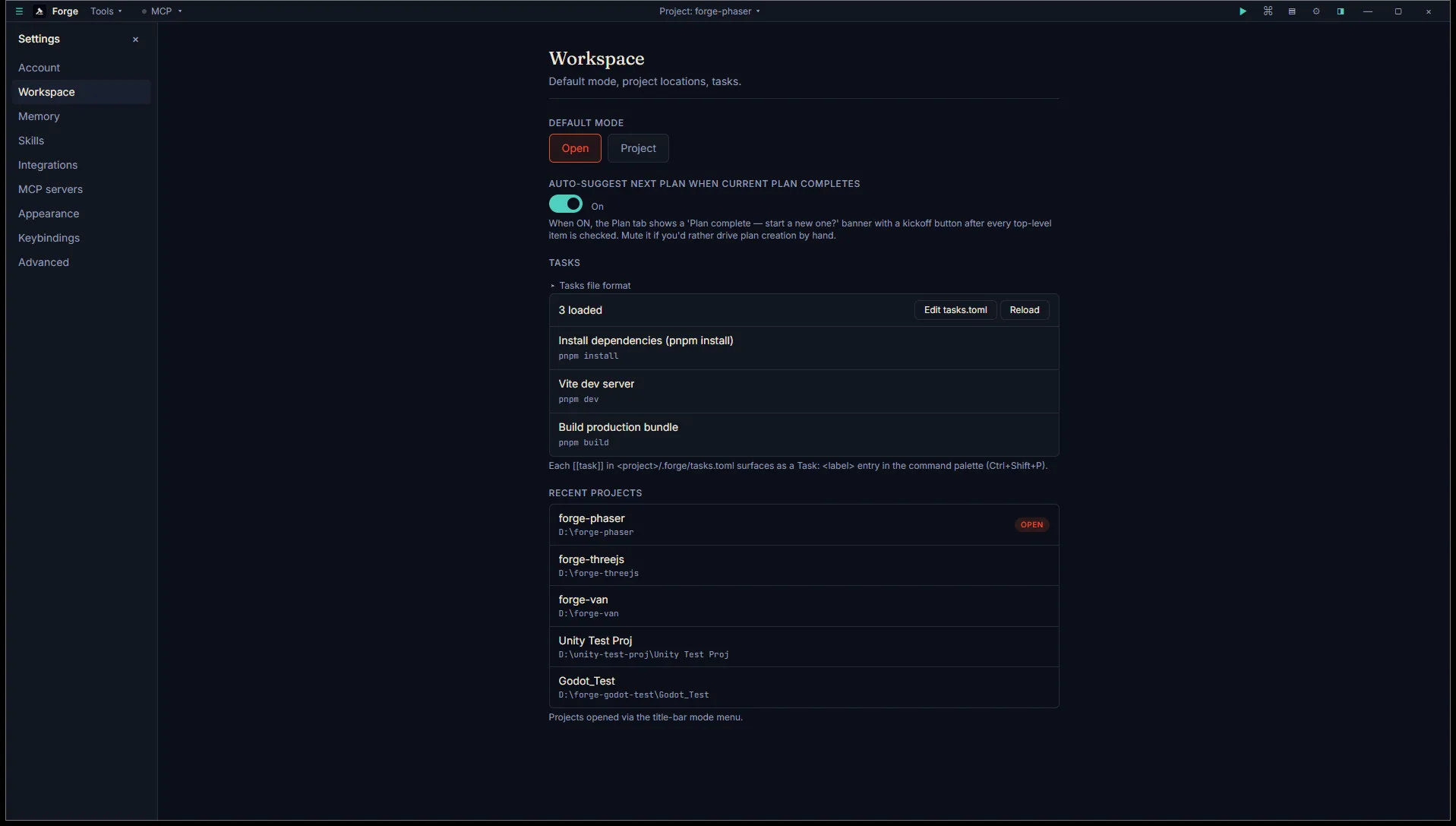
If you’d rather drive plan creation by hand, mute the banner from Settings → Workspace → Auto-suggest next plan when current plan completes. Default is ON.
Worked example: two new platformer levels
Section titled “Worked example: two new platformer levels”Here is the loop driving a real change end to end. The project is the platformer bundle, already shipping one level, and the ask is to add Level 2 and Level 3 with the player progressing between them.
The planning chat reads the existing systems and proposes six top-level items: repair the systems contract, make level loading data-driven, generate art and content for each new level, replace the restart-on-complete behaviour with progression, and verify the full run. Forge auto-mints the ids on accept.
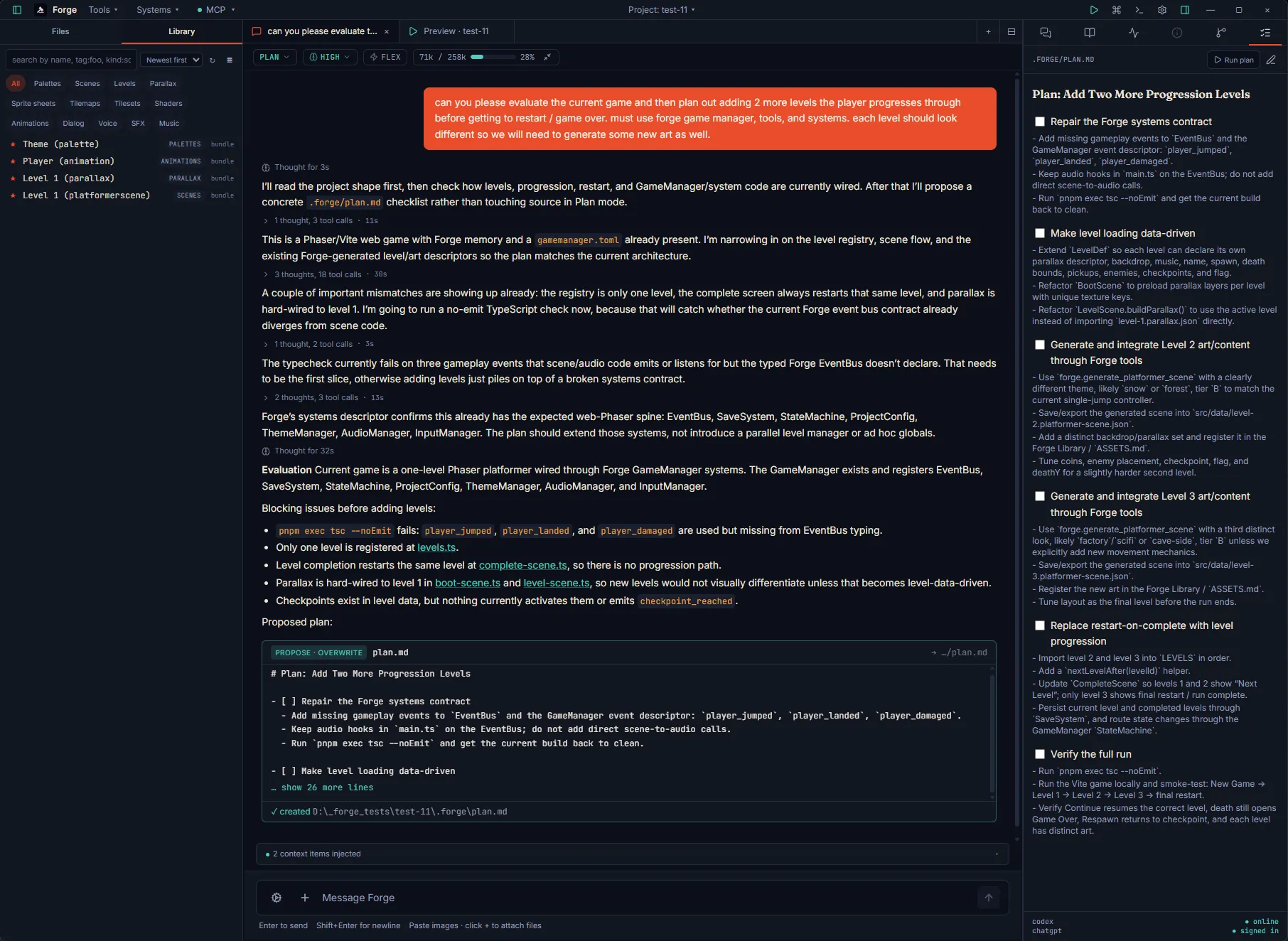
Each item gets its own focused chat in Act mode. You can work them serially or open several in parallel and switch between them as cards land for approval. A focused chat ends by proposing the checkbox tick on plan.md, you approve, the inspector advances, and the next chat picks up the thread.
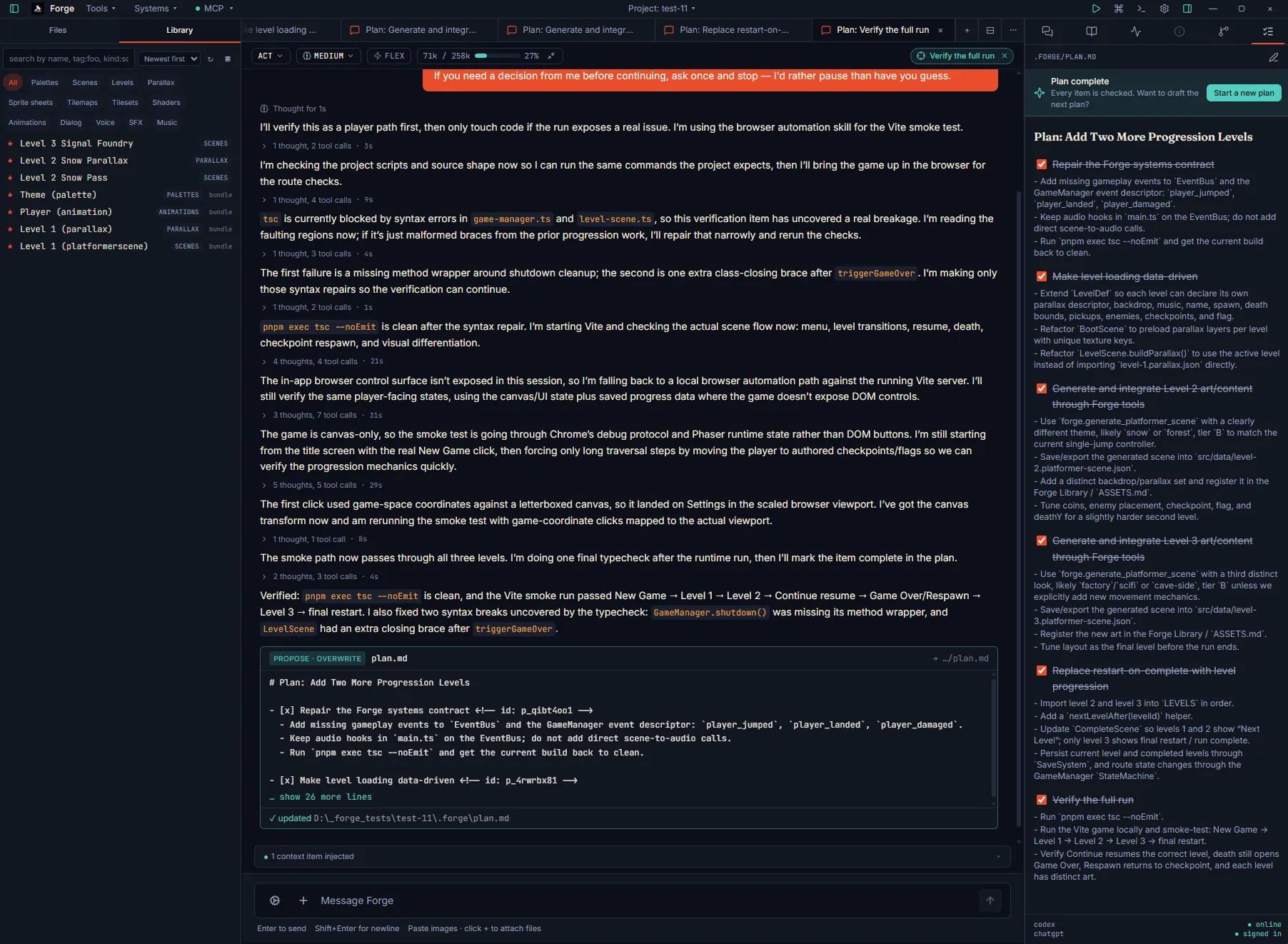
A few items along the way needed a nudge. The agent added new EventBus events without extending the typed event map, so the test task failed with TypeScript drift on the first run. That is the loop working as intended: the agent proposes, the build catches the gap, you ask the focused chat to fix the contract, and it does before proposing the tick. The Plan tab keeps a running view of what is still owing.
When every box is checked the Plan complete banner appears with Start a new plan ready to go.
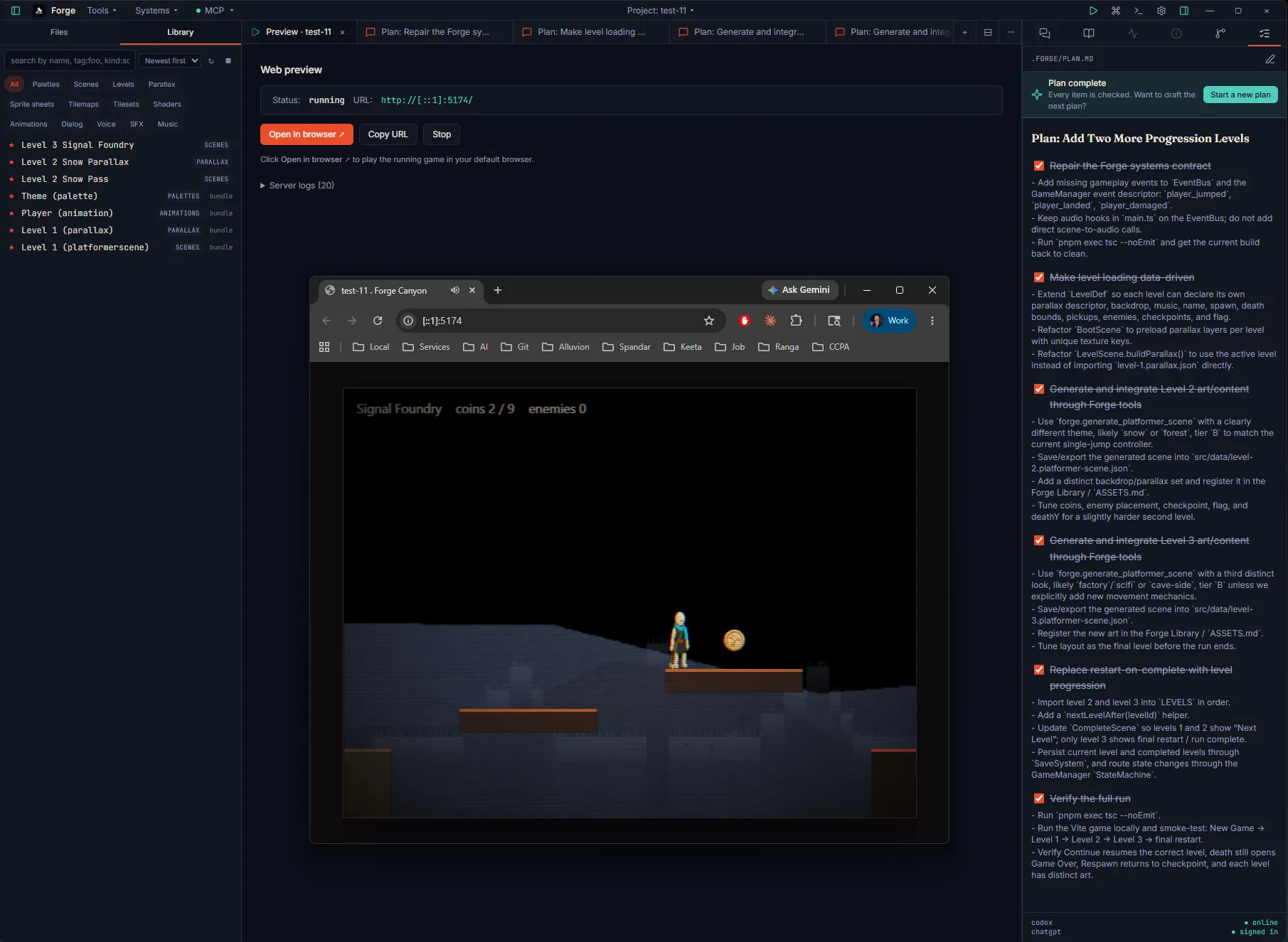
Click the web preview tab on a workspace and the actual built game is right there. Same project, two new levels, progression wired into the gameplay flow.
What the agent sees
Section titled “What the agent sees”When a chat is in Plan mode, Forge injects two extra blocks into the developer-instructions on every turn:
<plan_md path=".forge/plan.md">…body…</plan_md>— the current file content, capped at 8 KB. The agent doesn’t need a read tool to see the plan.- A short paragraph telling the agent that plan.md is the shared checklist, that updates are made via
forge-propose(operationappendoroverwrite), and that Forge mints the ids — the agent must not invent or guess them.
When a chat is focused on a specific item (regardless of mode), Forge also injects:
<focused_plan_item id="p_xxxxxxxx" title="…">…body…</focused_plan_item>— the item’s title, body, and any nested sub-checklist. Mode-specific guidance follows: stay scoped (Plan mode), do the work then propose the tick (Act mode), or just discuss (Ask mode).
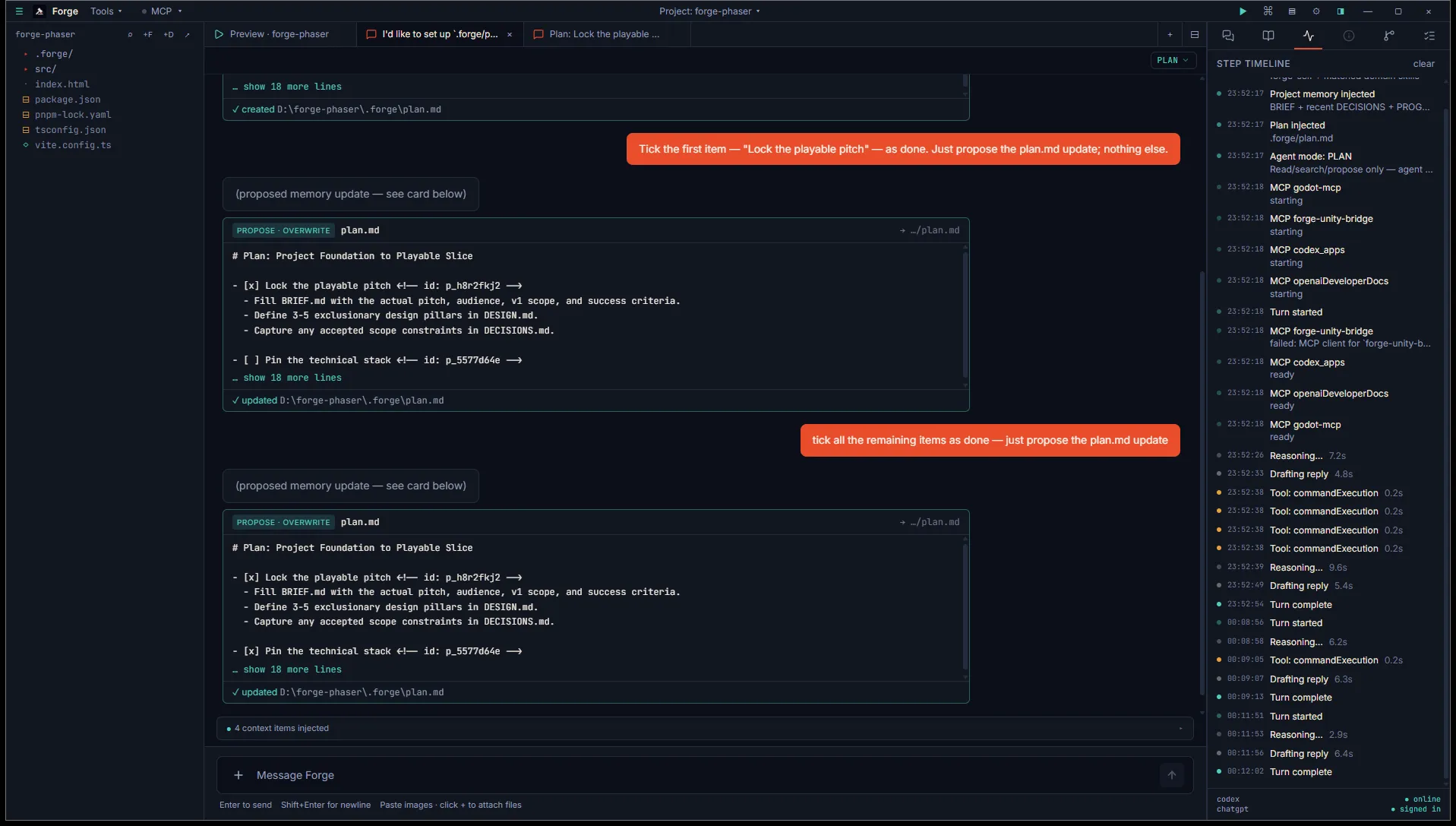
The Inspector’s Timeline tab shows these injection markers per turn so you can verify they’re firing.
Editing the plan by hand
Section titled “Editing the plan by hand”.forge/plan.md is plain markdown. You can edit it in any editor, in the Edit view of the Plan tab (pencil icon), or directly on disk. Forge tolerates hand-edits:
- Items without ids still render. The Plan tab shows a + id button per id-less top-level item, plus a Mint missing ids (N) header button to tag the whole file in one pass.
- Three checkbox states are recognised:
[ ]unchecked,[x]checked,[~]blocked. - Top-level items are focusable. Indented
- [ ]lines under a parent render as a checklist within that parent — they don’t get their own focus.
The schema is forward-compatible: trailing comments may carry extra metadata (<!-- id: p_x; prio: high -->); only the id is parsed today.