
Install and connect the Unity bridge
The Forge Unity Bridge is a small UPM package that runs a TCP server inside the Unity Editor. Forge connects as a client to read scenes, stream console output, and apply edits wrapped in Unity’s Undo. This page covers getting that connection up.
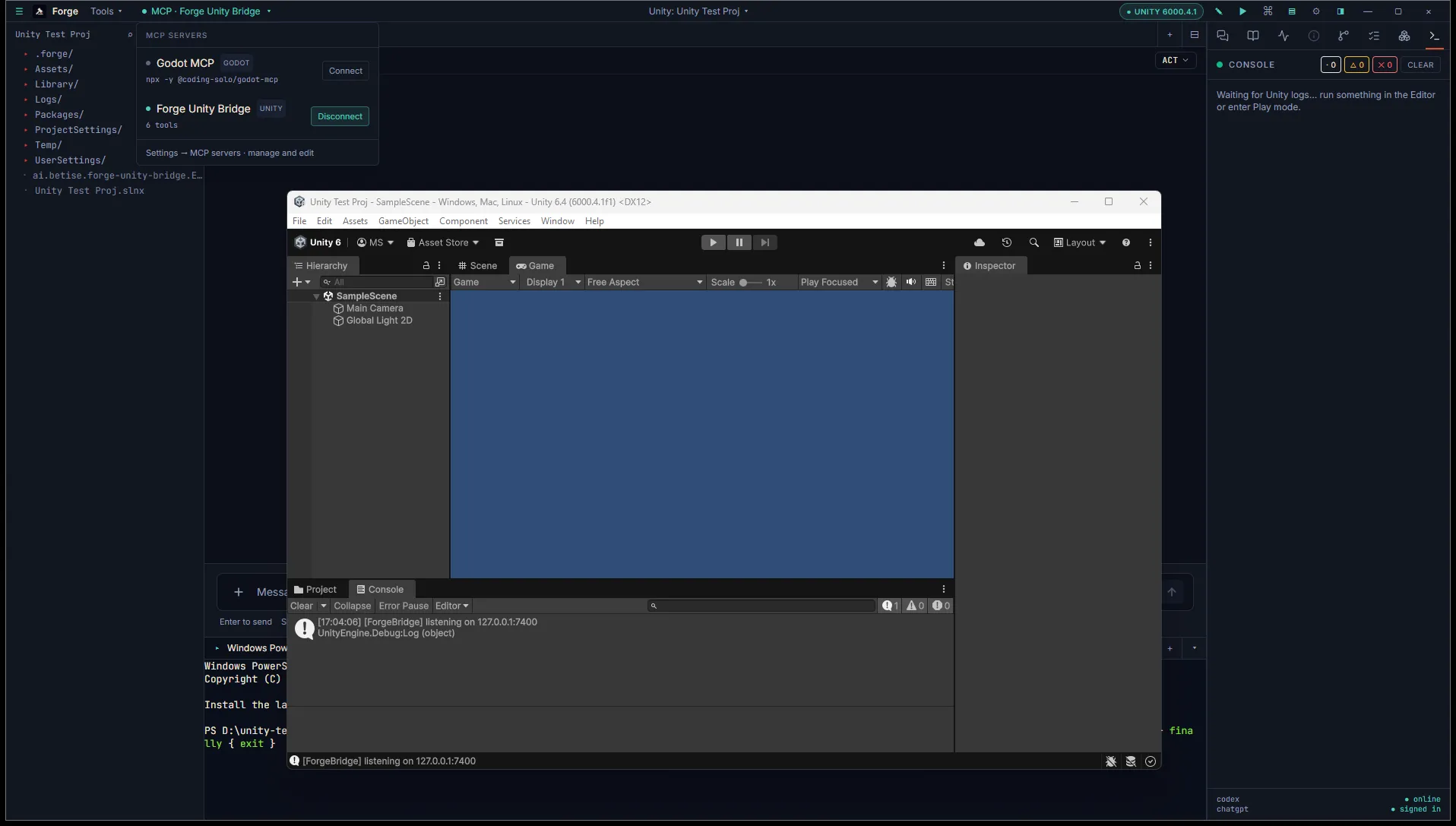
Install in one click
Section titled “Install in one click”Open a Unity project in Forge. Forge auto-detects Unity from the Assets/ and ProjectSettings/ProjectVersion.txt markers and surfaces a Unity-specific section in Settings → MCP.
Click Install bridge. Forge writes the package into <project>/Packages/ai.ranga.forge-unity-bridge/. The package contains a handful of editor scripts. None of it ships in player builds.
If a bridge already exists at that path (you’ve installed before), the button reads Reinstall. Reinstalling overwrites the package contents with the version Forge has bundled, which is how you pull in updates.
Let Unity pick it up
Section titled “Let Unity pick it up”Switch to the Unity Editor window. On focus, Unity scans Packages/ and compiles the new package. Expect a one-time progress bar and a few seconds of editor lockup.
Once compiled, the bridge starts a TCP server on port 7400 (configurable in the bridge’s window: Window → Forge Bridge).
A note on Domain Reload
Section titled “A note on Domain Reload”The first time the bridge starts, it changes two project settings under Edit → Project Settings → Editor → Enter Play Mode Options:
- Disable Domain Reload is turned on.
- Disable Scene Reload is turned on.
This is required. Unity’s default Play-mode reload tears down the bridge’s TCP listener, and Unity 6 then crashes when the listener tries to start back up. Disabling the reloads keeps the bridge running across the Play boundary.
You can revert the change in the bridge config asset if you want, but you’ll lose the connection on every Play.
Confirm the connection
Section titled “Confirm the connection”Switch back to Forge. The Unity pill in the title bar turns green and reads Connected along with the Editor version.
The Inspector grows two tabs:
- Hierarchy shows the active scene’s GameObjects.
- Console streams
Debug.Log, warnings, and errors from the Editor.
Click any node in Hierarchy and Unity selects it in the Editor. Save a scene change in Unity and the Hierarchy refreshes.
Common issues
Section titled “Common issues”Pill stays grey. Check the Unity console for compilation errors after install. Confirm port 7400 isn’t blocked by your firewall, and confirm Unity is actually running. The bridge only listens while the Editor is open.
Bridge stops working after entering Play mode. Domain Reload disable hasn’t been applied. Open Edit → Project Settings → Editor → Enter Play Mode Options and confirm both reloads are disabled.
Version mismatch warning in the Forge log. Forge declares a protocol version it expects from the bridge. If they don’t match, Forge logs the mismatch and degrades to whatever subset still works. Reinstall the bridge to bring it back in sync.
What’s next
Section titled “What’s next”- Read tools covers what the agent can ask the Editor about.
- Write tools covers what the agent can change in the scene.
- Build mode installs a headless build script.