
Audio trimmer
The Audio trimmer takes any audio file your browser can decode and crops it to a selection. The output is 16-bit PCM WAV, which is what most engines expect for short audio assets.
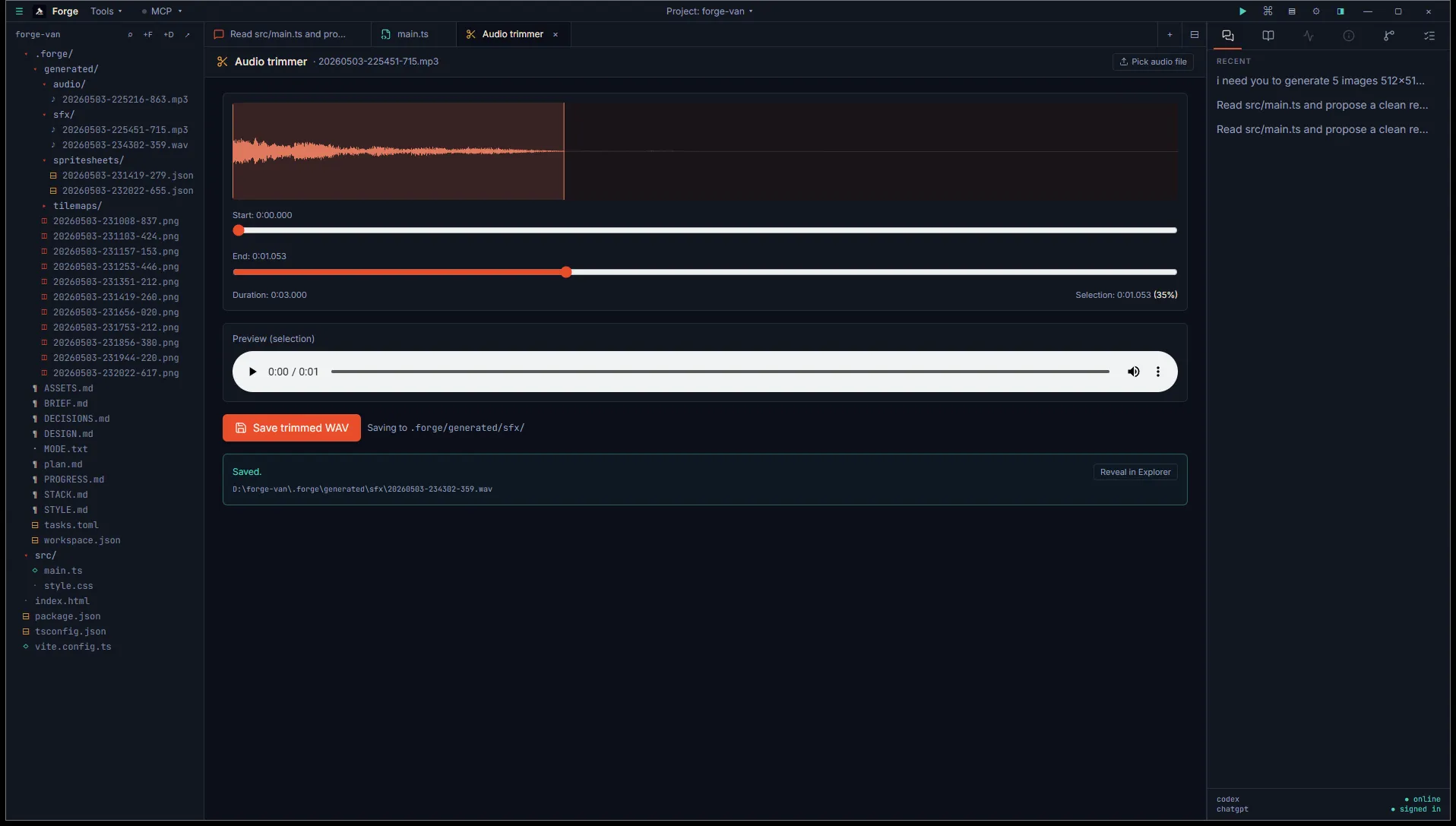
The trimmer pairs directly with the Music and SFX generators: when ElevenLabs returns a clip with too much intro or trail, hit Trim on the result card and you land in this tab with the file already loaded.
Open it
Section titled “Open it”Three ways:
- Title bar Tools menu, then Pipeline tools, then Audio trimmer.
- The Trim button on a Music or SFX result card.
- Drag an audio file onto the workspace from the project explorer.
Inputs
Section titled “Inputs”- Audio file. WAV, MP3, OGG, M4A, FLAC, or anything the browser’s Web Audio API can decode.
- Start and end sliders. Time in seconds with millisecond precision.
The waveform display shows the audio with a highlighted selection region. Drag either edge of the region or use the sliders directly.
Preview
Section titled “Preview”The inline player previews the trimmed selection, not the full file. Useful for confirming the crop sounds right before exporting.
The header shows duration and the selection percentage of the original.
Output
Section titled “Output”Click Save trimmed WAV to export. The file lands at <project>/.forge/generated/sfx/<timestamp>.wav. Format is 16-bit PCM at the same sample rate as the input.
- The audio context is created lazily on first decode and stays alive for the tab’s lifetime. Closing the tab frees the buffers.
- The cropped buffer rebuilds whenever you move a slider. For very long files, expect a brief pause as the buffer copies.
- Multi-channel audio is preserved. Stereo in, stereo out.
- If you need to trim a file that isn’t WAV/MP3/OGG (an unusual codec or container), use a desktop audio editor first.