
Settings panel
Open Settings with Ctrl+, or by clicking the gear icon in the title bar.
The panel has nine sections in a left rail. Switching between them is instant. Most settings save as you change them; a few (file paths, keybindings) require an explicit confirm.
Account
Section titled “Account”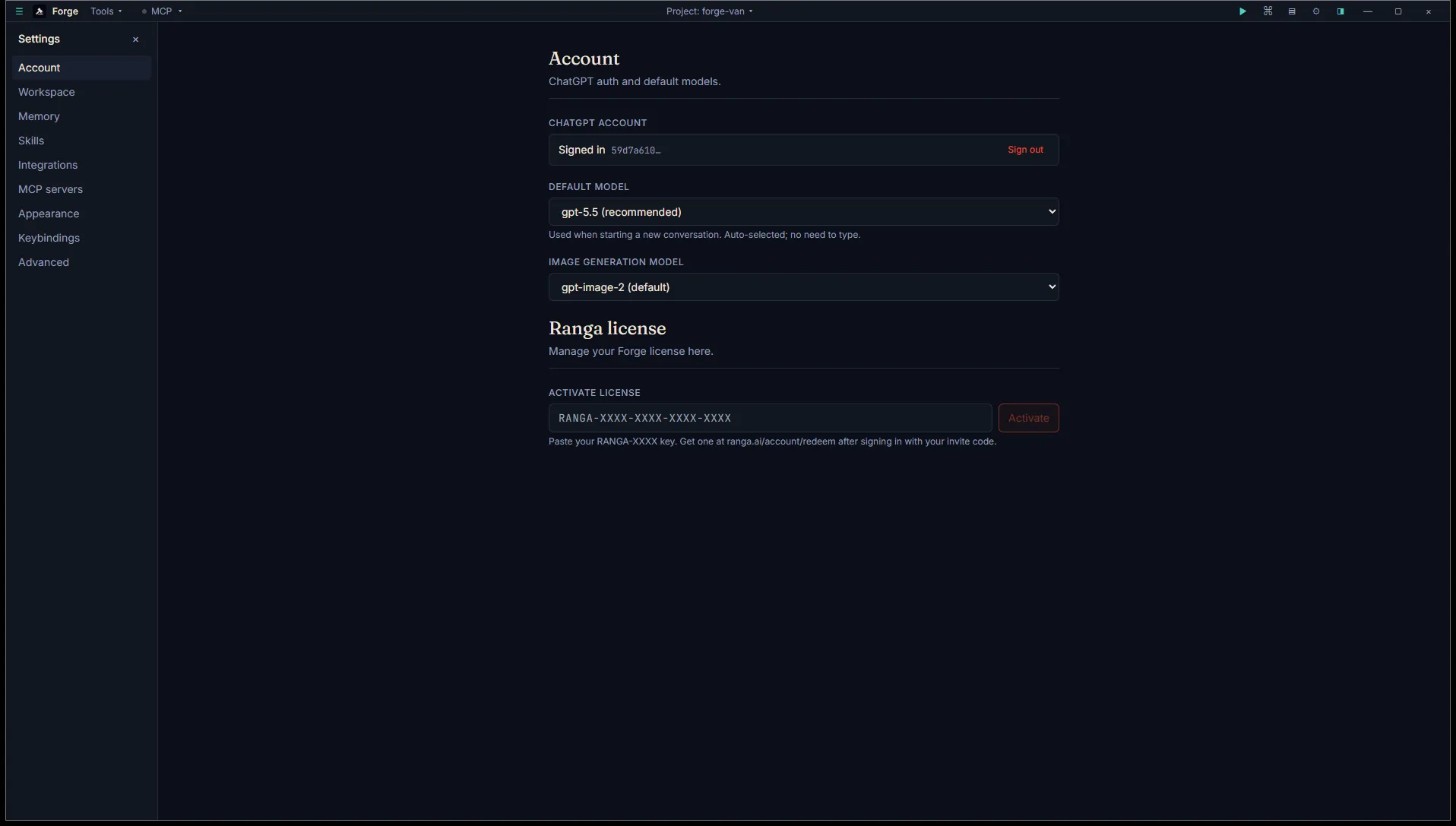
Manages your ChatGPT connection and model defaults.
- Connection status: signed in / signed out, with a partial account ID when connected.
- Sign in / Sign out buttons.
- Default model: dropdown of the models your plan exposes. Latest GPT-5 reasoning model is the default.
- Image model: dropdown for in-chat image generation. gpt-image-2 by default.
- Ranga license activator: paste your
RANGA-XXXXlicense key. Get one atranga.ai/account/redeemafter signing in with your invite code.
Workspace
Section titled “Workspace”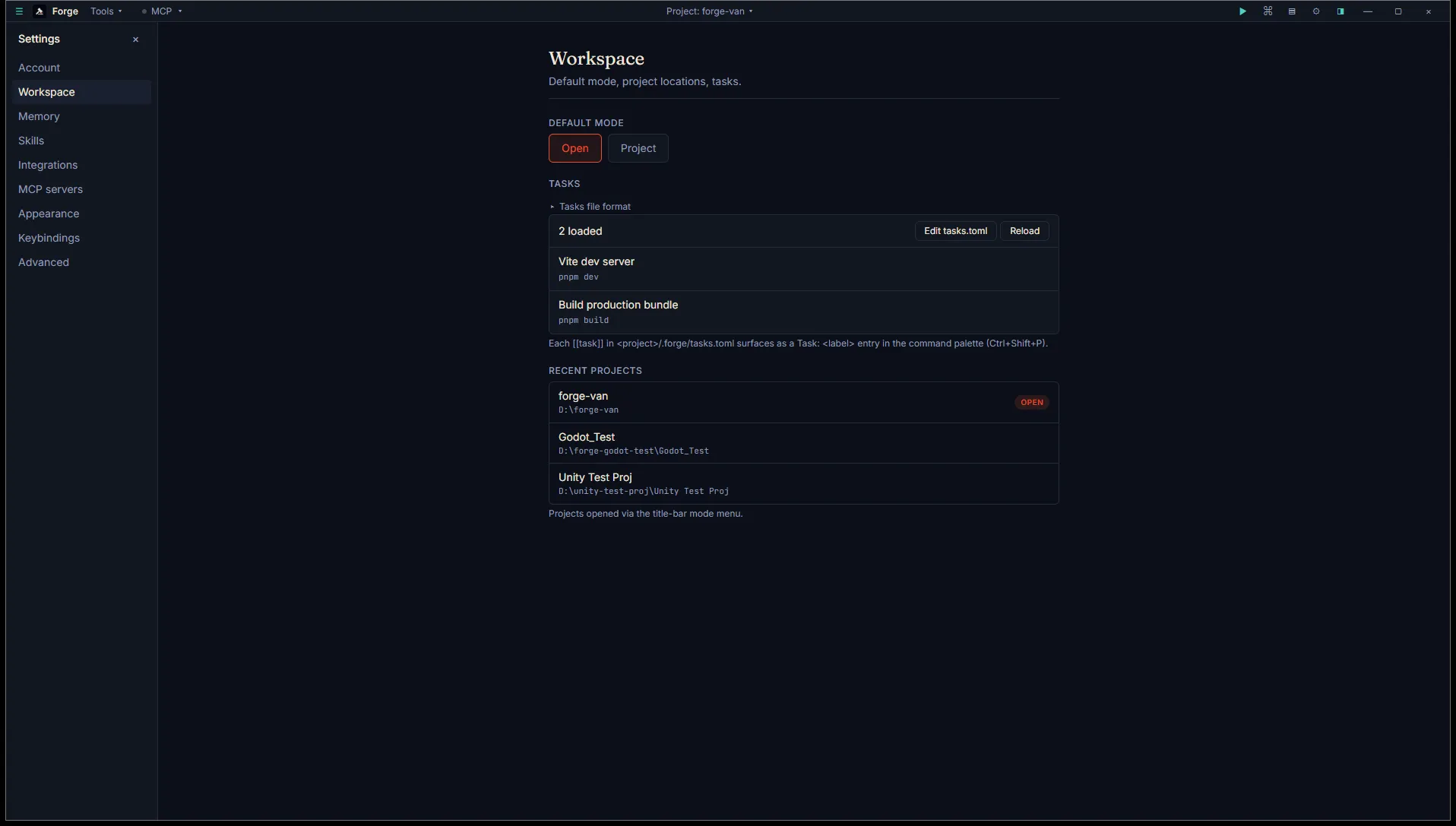
How Forge handles project mode and tasks.
- Default mode when starting Forge with no project pinned: Open or Project.
- Tasks: shows the count of tasks loaded from the active project’s
tasks.toml, with Edit tasks.toml and Reload affordances. Each task is listed by label and command. - Recent projects: list of recently opened projects with a per-row remove affordance. The currently open one is marked OPEN.
Memory
Section titled “Memory”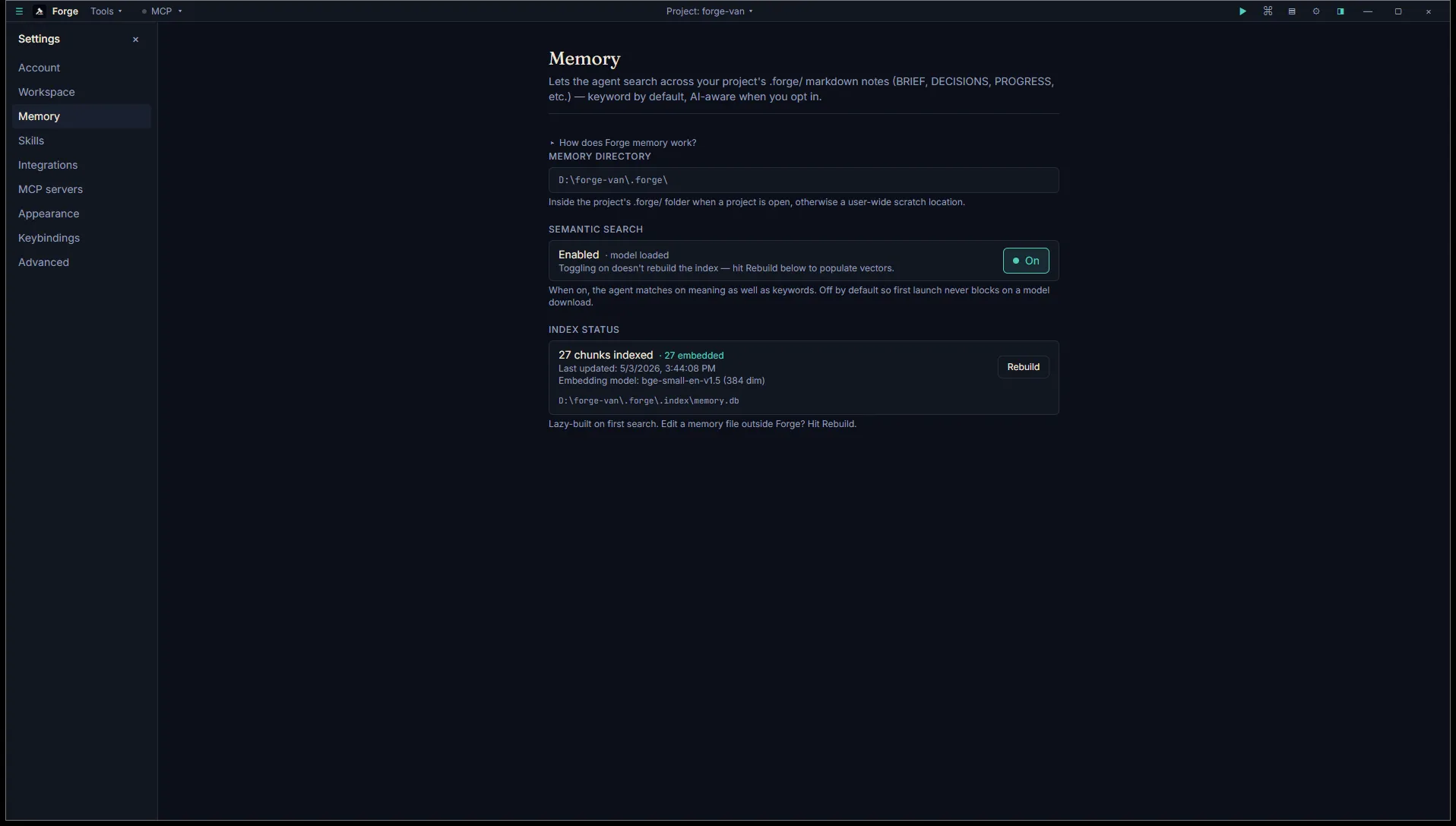
Memory search configuration.
- Memory directory: shows the active memory location, either
<project>/.forge/in project mode or a user-wide scratchpad in open mode. - Semantic search: toggle. When on, Forge downloads a small embedding model (~30 MB) on first use and adds vector search to keyword (BM25) ranking. Off by default so first launch never blocks on a model download.
- Index status: chunk count, embedded count, last-updated timestamp, embedding model name and dimension, and the path to the on-disk SQLite index.
- Rebuild button: forces a full re-index of
.forge/*.md. Takes 30 seconds or so on a fresh project.
Skills
Section titled “Skills”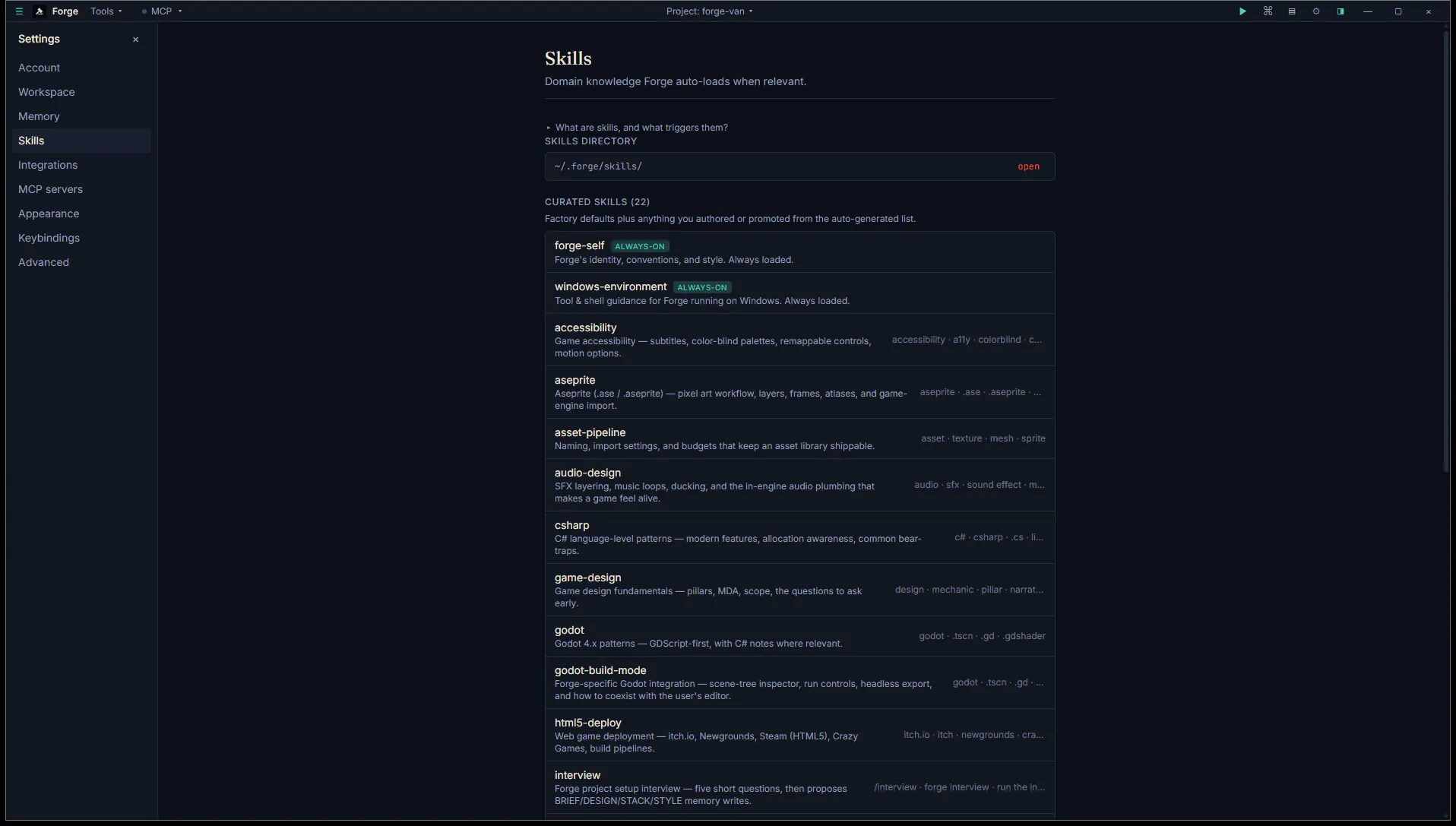
Manages the skill library.
- Skills directory: shows where skills live (
~/.forge/skills/). - Curated list: factory skills plus anything you authored or promoted, with one row per skill, name, triggers, engine, and description.
- Auto-generated section at the bottom: agent-generated skills under
auto/<name>/v<n>/, with copy explaining when Forge proposes new auto-skills.
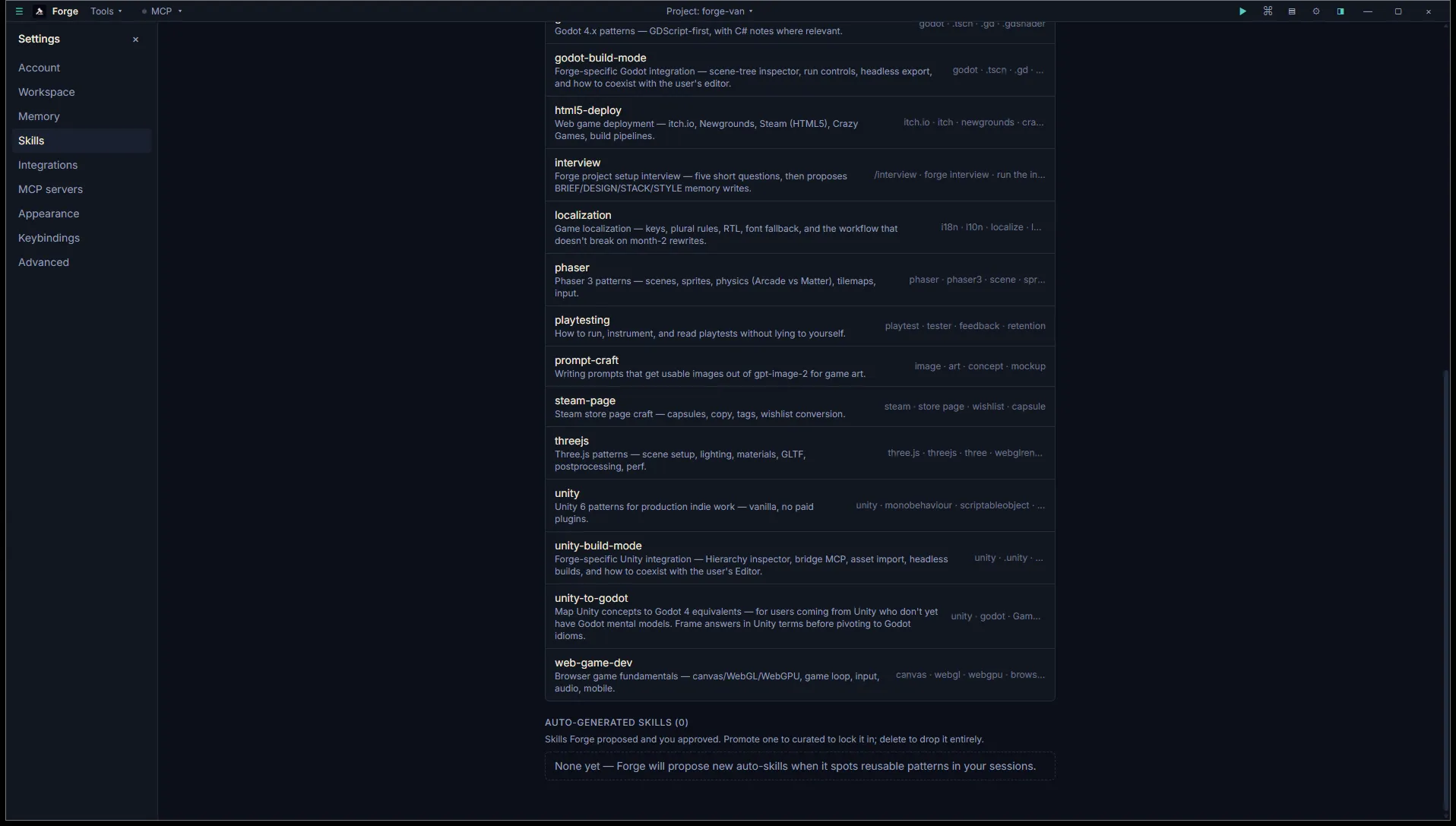
See Skills system for how matching and promotion work.
Integrations
Section titled “Integrations”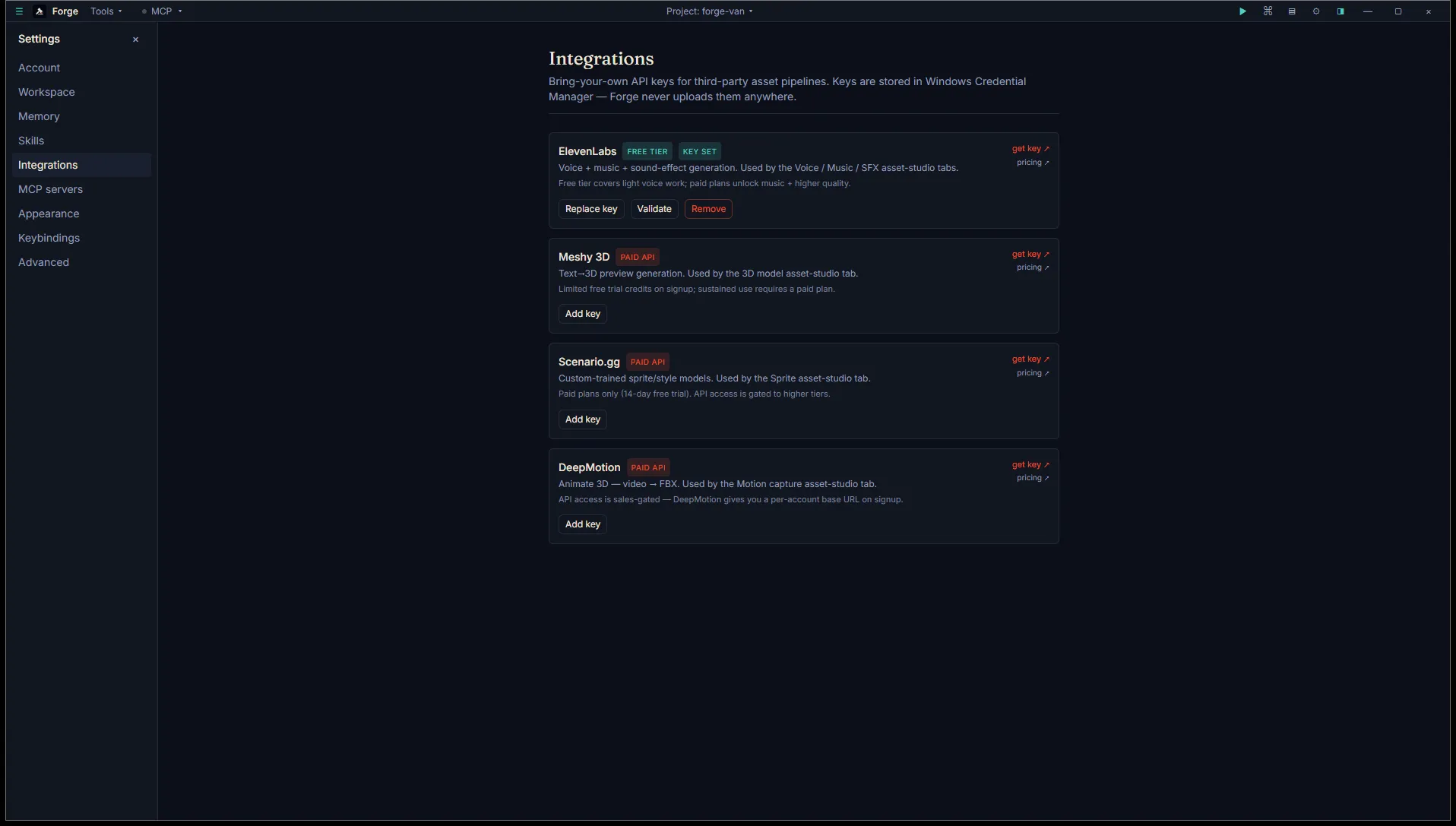
API keys for the Asset studio vendors. Each vendor row shows a tier badge (FREE TIER / PAID API), short description, and per-vendor “get key” and “pricing” links.
- ElevenLabs: single API key. Powers Voice, Music, and SFX.
- Meshy 3D: single API key for text-to-3D mesh generation.
- Scenario.gg: API key + secret pair (Scenario uses Basic auth).
- DeepMotion: clientId + clientSecret pair.
When a key is set, the row shows Replace key, Validate, and Remove. Validate pings the vendor’s auth-gated endpoint to confirm the credential works. When no key is set, Add key opens the entry dialog. Keys are stored in your Windows Credential Manager and aren’t shown in plaintext after submission.
MCP servers
Section titled “MCP servers”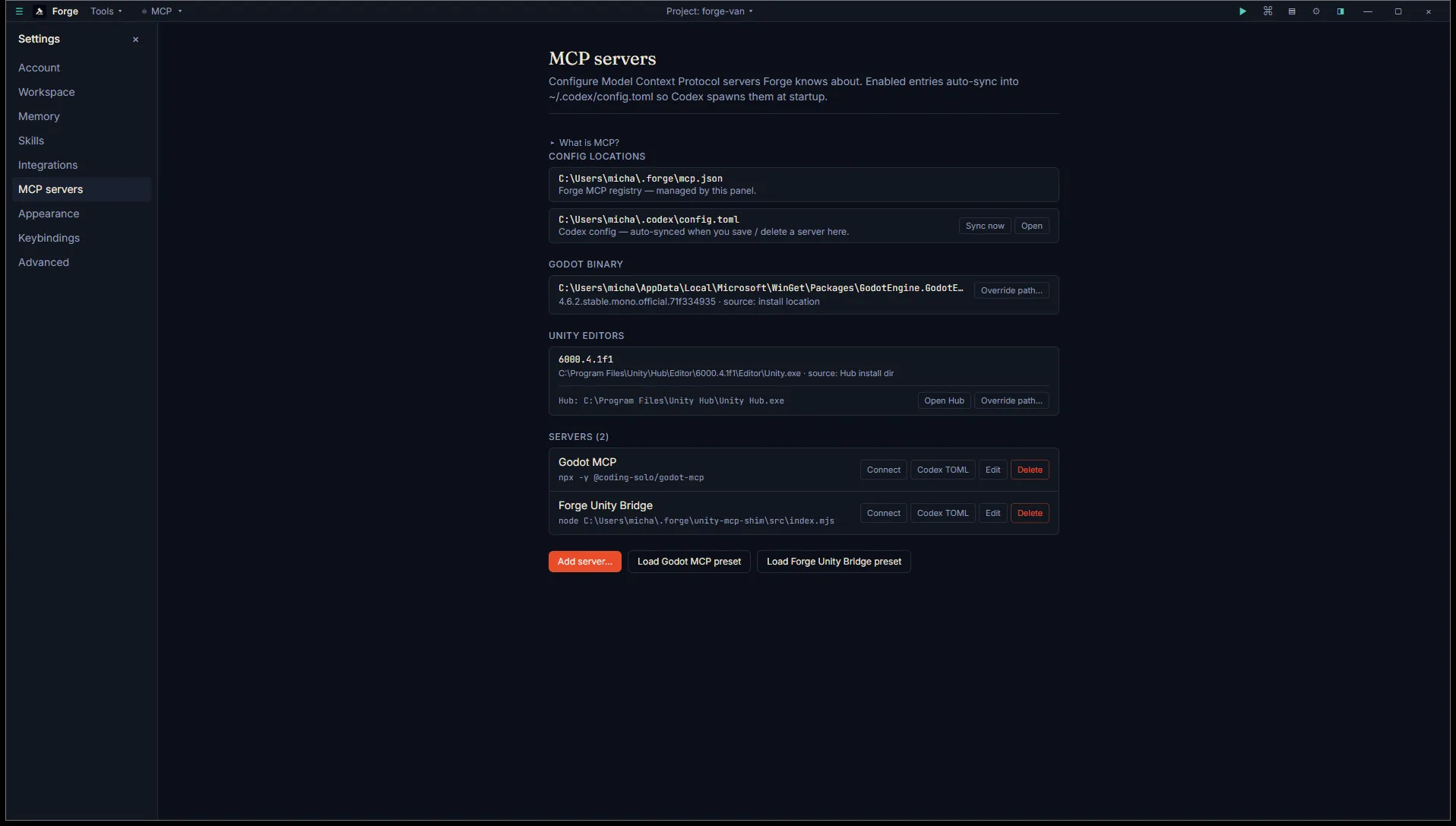
Lists MCP servers, configures auto-sync to Codex, loads bundled presets, and surfaces engine-specific install actions when a Unity or Godot project is open.
- Config locations: paths to Forge’s MCP registry (
~/.forge/mcp.json) and the Codex config (~/.codex/config.toml) that Forge auto-syncs to. - Godot binary: detected install path with version, plus Override path.
- Unity Editors: each detected Editor with its install location, plus Hub path and Open Hub / Override path actions.
- Forge Unity Bridge section (visible when a Unity project is open): bridge install status with reinstall and uninstall actions.
- Unity build script section (visible when a Unity project is open):
Assets/Editor/ForgeBuild.csinstall status. - Servers list: each MCP server with its command, Connect / Disconnect, Codex TOML toggle, Edit, and Delete.
- Add server: paste a command and args.
- Load preset: bundled presets for the Forge Unity Bridge and Godot MCP.
See MCP servers for the broader MCP story.
Appearance
Section titled “Appearance”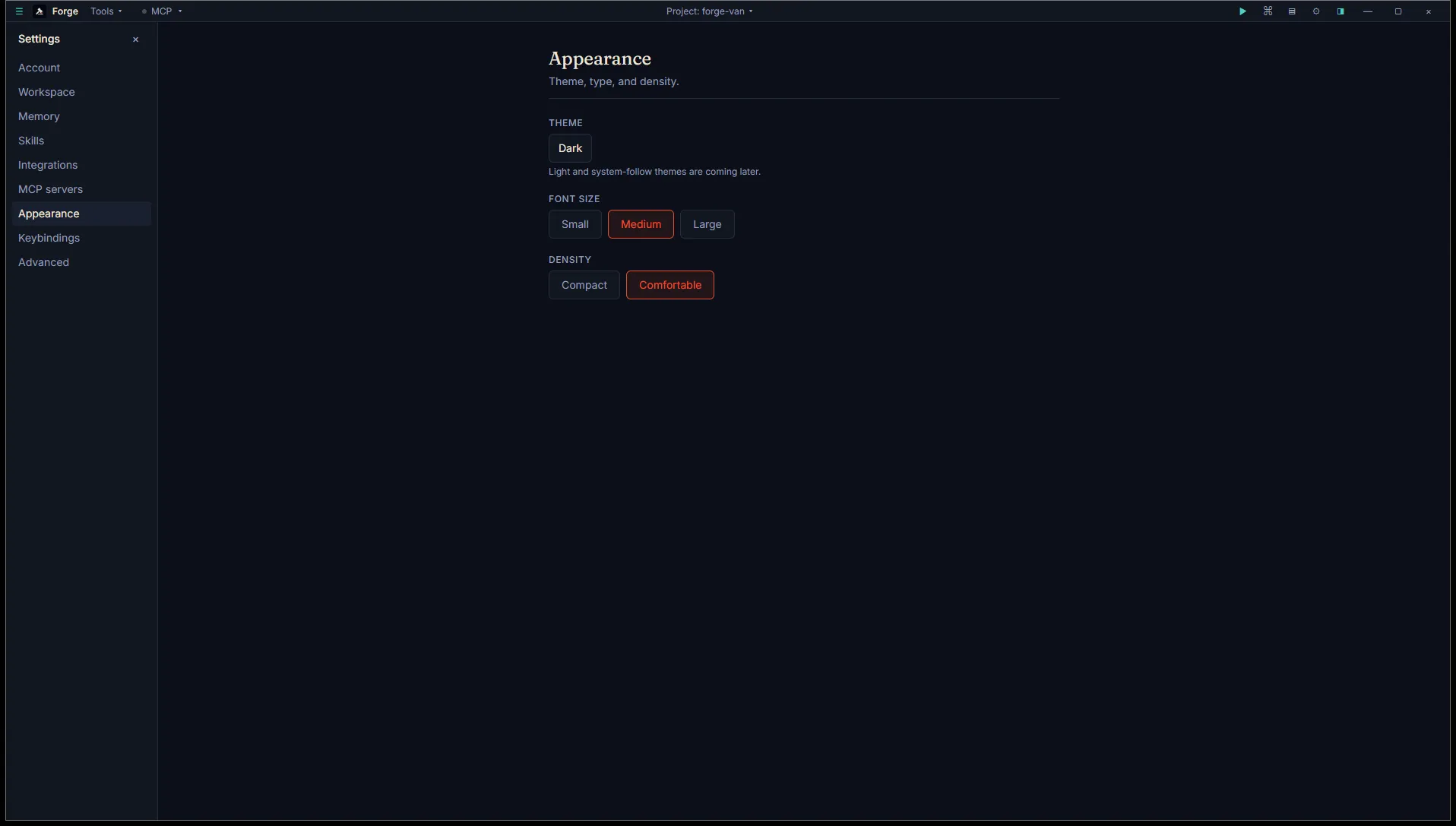
- Theme: Dark only today. Light and system-follow themes are coming later.
- Font size: small / medium / large UI scale.
- Density: compact / comfortable spacing.
Keybindings
Section titled “Keybindings”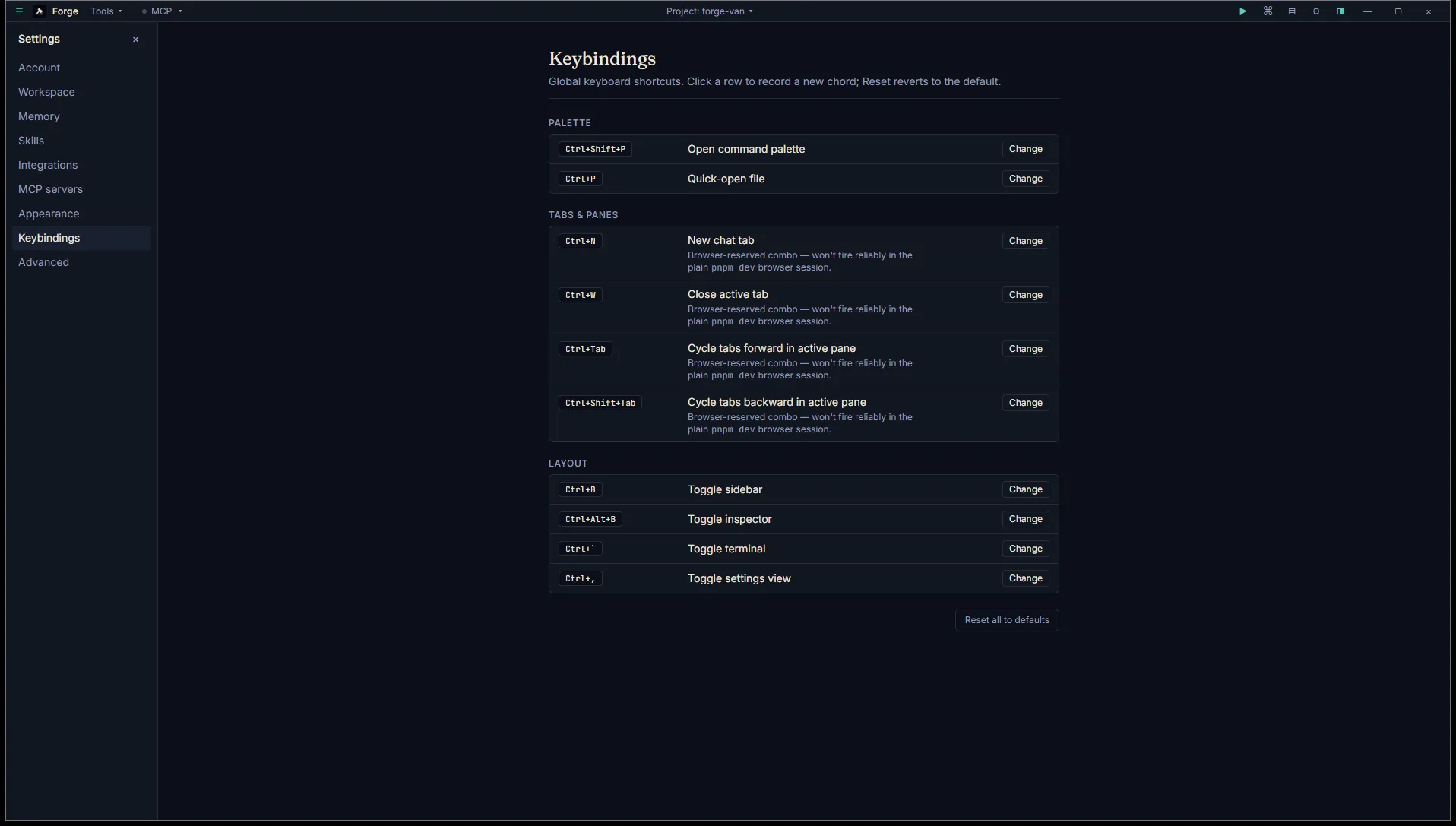
Lists every workspace hotkey with its current chord.
- Click Change on a row to remap. Press the new chord. Conflicts are flagged before save.
- Reset all to defaults at the bottom reverts every binding.
See Hotkeys for the full default keymap.
Advanced
Section titled “Advanced”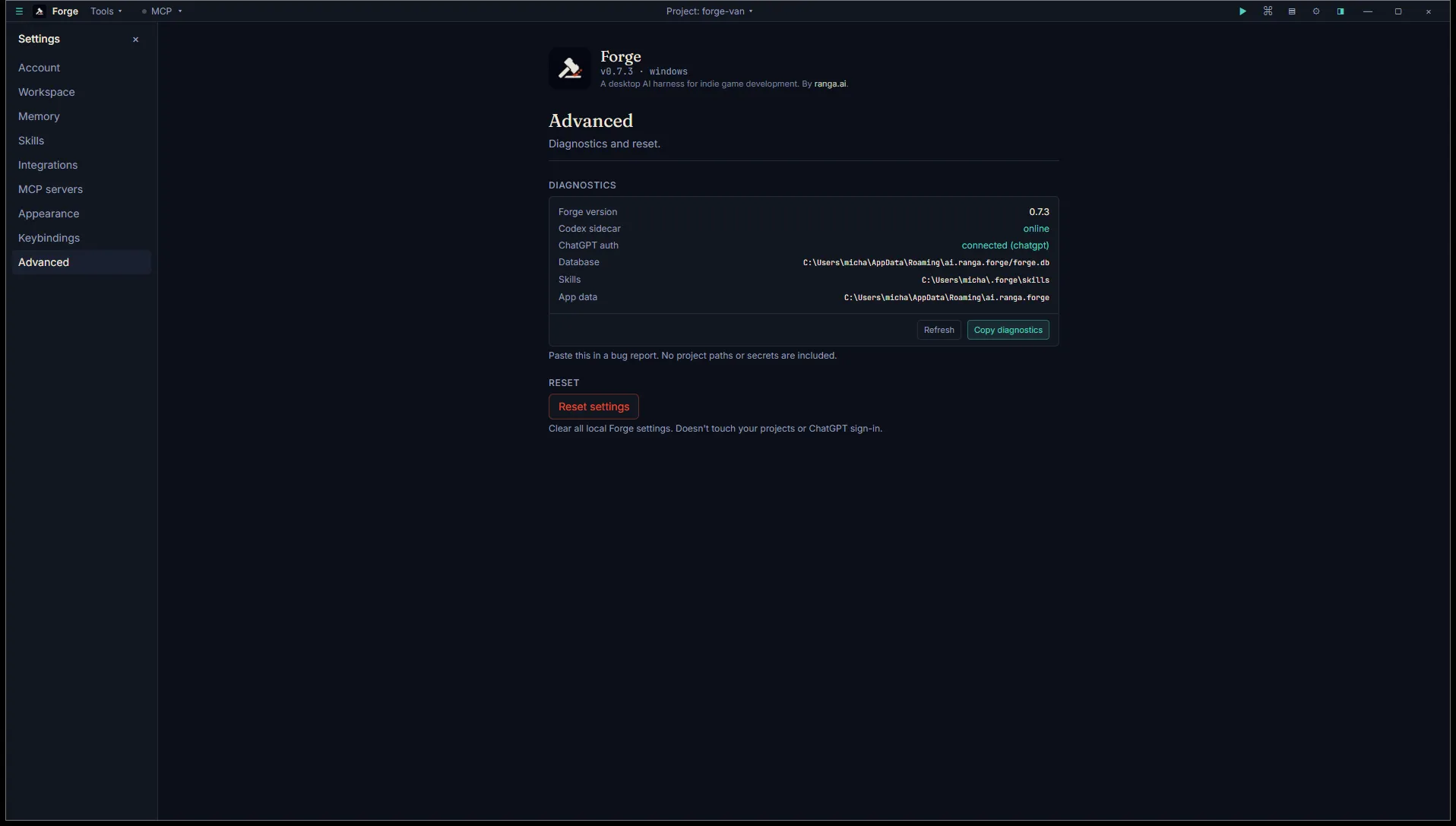
Diagnostic and reset options.
- About: brand mark, app version, and platform with a one-line product description.
- Diagnostics card: Forge version, Codex sidecar status, ChatGPT auth status, and paths to the Forge database, skills directory, and app data directory. Refresh rechecks status, Copy diagnostics copies a paste-ready report.
- Reset settings: clears all local Forge settings to defaults. Doesn’t touch your projects or ChatGPT sign-in.