QA playtest with the agent
Forge ships a QA harness aimed at solo indies who don’t have a QA budget. Each scenario is a Playwright walkthrough described in TOML, plus a rubric the multimodal model uses to score the captured screenshots. The runner pixel-diffs new shots against an accepted baseline so silent visual regressions can’t slip through.
The workflow is: write a scenario, click Run, watch the steps tick through, accept the screenshots as a new baseline, click Grade with agent, accept the agent’s report.md proposal. The report renders inline next to the artifacts.
Set up the runtime
Section titled “Set up the runtime”Open a project, hit Tools → QA scenarios (or Ctrl+Shift+P → “QA: open scenarios”). The first time you visit, the tab is empty.
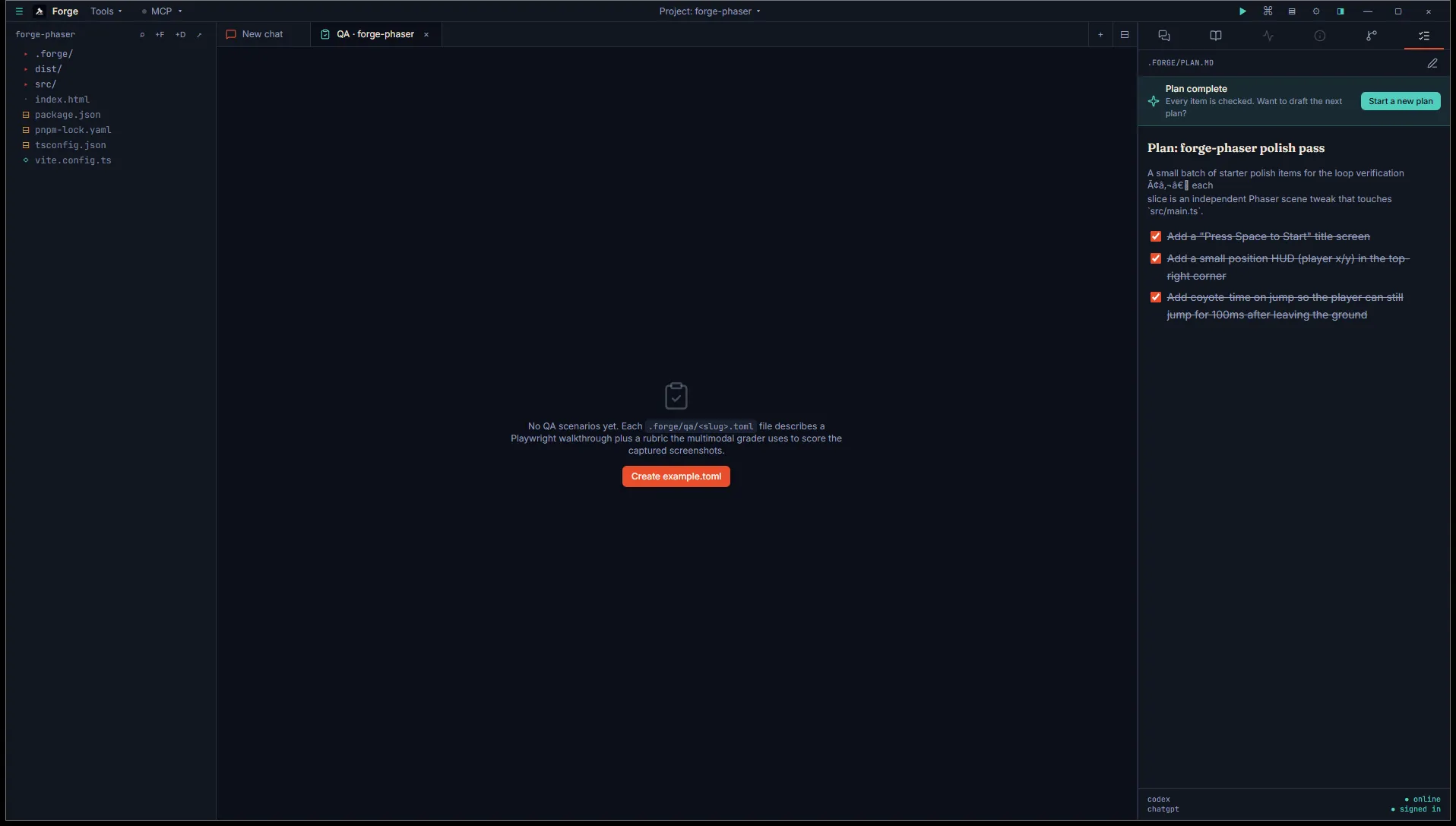
Click Create example.toml. Forge seeds a starter scenario at <project>/.forge/qa/example.toml and opens it in Monaco so you can edit it. The QA tab populates with the scenario’s title, the parsed steps, and the rubric.
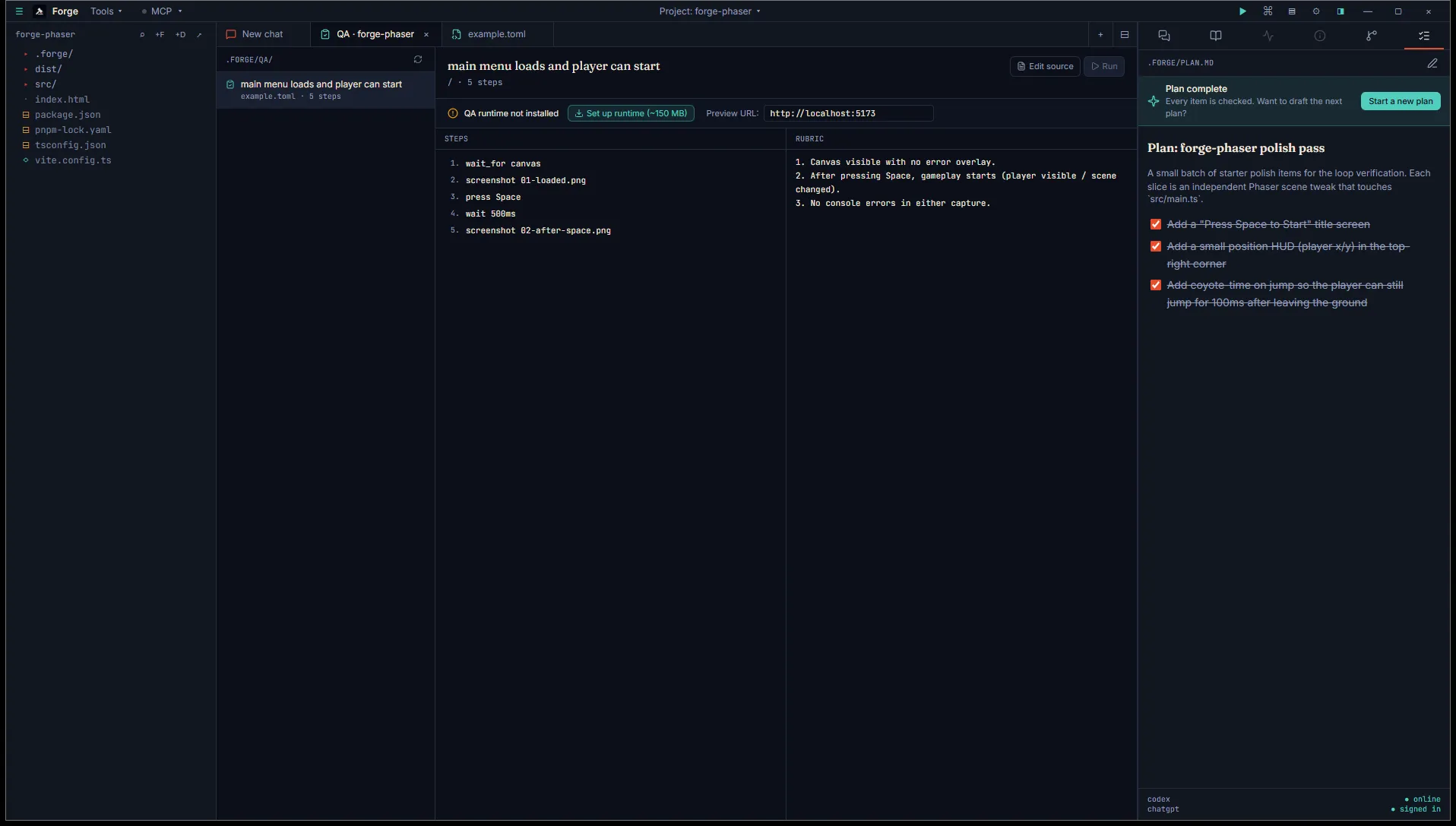
Two affordances above the panes:
- QA runtime not installed — Playwright + Chromium aren’t bundled into the Forge MSI. Click Set up runtime (~150 MB) the first time. Forge installs into
~/.forge/qa-runtime/and the banner flips to “QA runtime ready”. Subsequent runs reuse the cache. - Preview URL — defaults to your project’s
[preview]URL fromtasks.toml. Editable, so you can point at any local server while iterating.
The Run button stays disabled until both runtime + URL are ready.
Author a scenario
Section titled “Author a scenario”.forge/qa/<slug>.toml is one scenario per file. Filename without .toml is the slug the QA tab + command palette key off.
name = "main menu loads and player can start"url = "/"steps = [ { action = "wait_for", selector = "canvas" }, { action = "screenshot", path = "01-loaded.png" }, { action = "press", key = "Space" }, { action = "wait", ms = 500 }, { action = "screenshot", path = "02-after-space.png" },]rubric = """1. Canvas visible with no error overlay.2. After pressing Space, gameplay starts (player visible / scene changed).3. No console errors in either capture."""Available actions:
| Action | Fields | What it does |
|---|---|---|
wait_for | selector, optional timeout_ms | Wait for selector to appear in the DOM. |
wait | ms | Fixed pause. |
goto | url | Navigate (relative to the preview base or absolute). |
click | selector | Click the first matching element. |
type | optional selector, text | Type into focused element or matching selector. |
press | key | Press a keyboard key (e.g. Space, Enter). |
screenshot | path | Capture PNG into the run’s artifact dir. |
Run it
Section titled “Run it”Make sure your project’s preview server is running (▶ Preview in the title bar, or your [preview] task). Click Run. The runner spawns Playwright headless Chromium against the URL field and walks the steps in order. The Steps pane swaps to a live progress view: pending dot → spinner → ✓ on success, ✗ on failure, with screenshot paths and per-shot Δ pixel-mismatch badges.
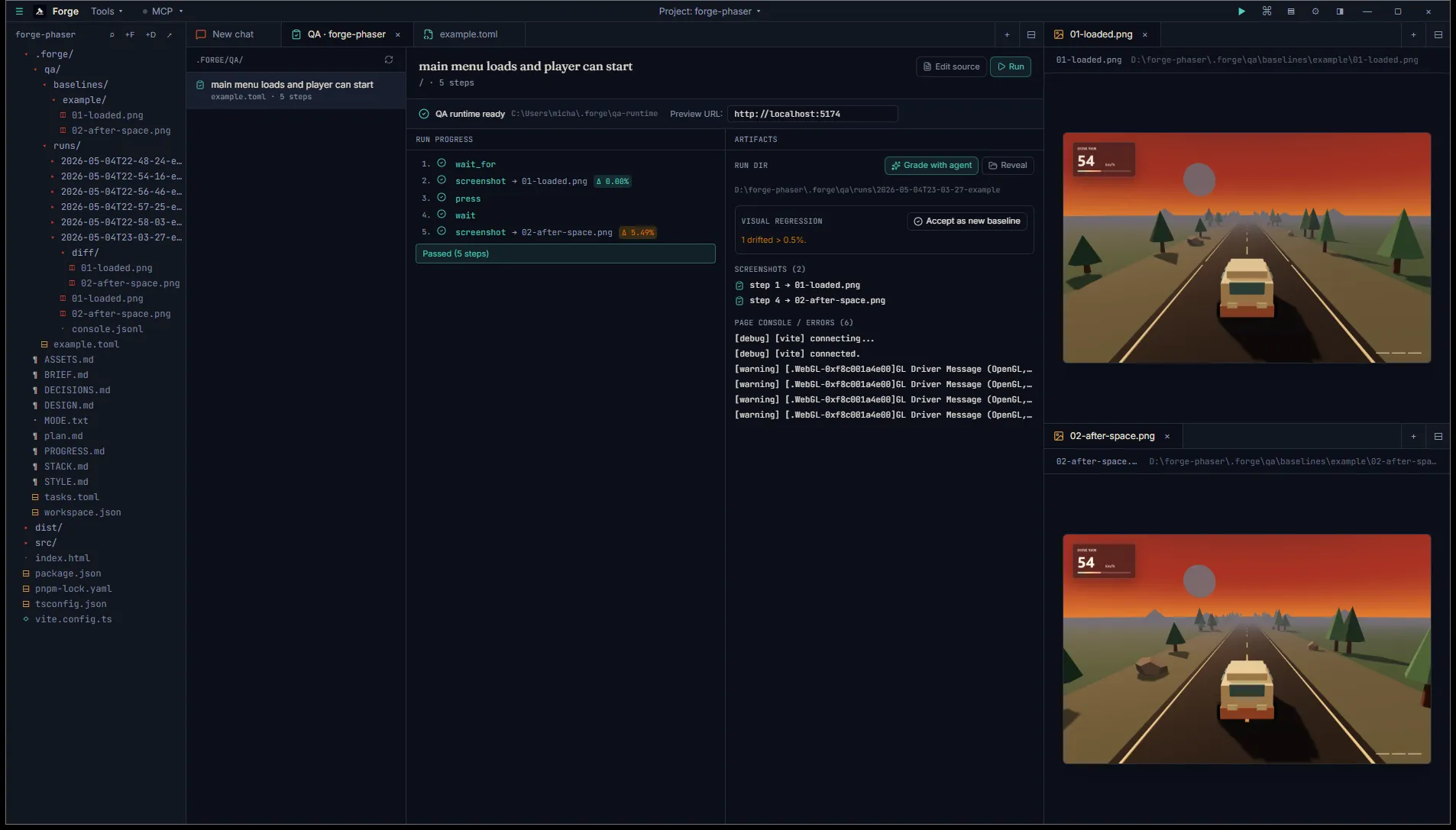
Right pane swaps to the Artifacts view: visual-regression panel (drift count + “Accept as new baseline” button), the run dir path with a Reveal button, the per-step screenshot list, and the most recent page-console lines.
If a step fails, the run aborts and remaining steps stay pending. The error message + the abort reason render in red. Console output is captured regardless, so you can scroll back through what the page logged before the failure.
Pixel diff and baselines
Section titled “Pixel diff and baselines”The first time you run a scenario there’s no baseline. Each screenshot row shows a muted no baseline badge. Once you’re happy with what you captured, click Accept as new baseline in the Visual regression panel. Forge copies the screenshots from the run dir into <project>/.forge/qa/baselines/<slug>/.
Subsequent runs compare each new shot against its baseline. Badge legend:
- Δ 0.05% (green) — match within 0.5%, well below the human-perceptible threshold.
- Δ 2.31% (amber) — drift > 0.5%. A diff PNG is written to
<run-dir>/diff/<file>.pnghighlighting the changed pixels. - size mismatch — viewport changed since the baseline. Re-seed by accepting the new run.
- diff unavailable — pixelmatch + pngjs missing from the QA runtime. Re-run “Set up runtime”.
Drifted runs aren’t failures — they’re prompts. If the new look is intentional, click Accept again to promote. If not, the agent has visual evidence to diagnose what changed.
Grade with the agent
Section titled “Grade with the agent”Once a run completes, the Artifacts panel grows a Grade with agent button (sparkles icon). Click it and Forge opens a chat tab seeded with a kickoff prompt: scenario name, rubric verbatim, full screenshot paths, run-dir location, a one-line console summary, and instructions to grade each rubric item PASS / FAIL with rationale citing visible evidence.
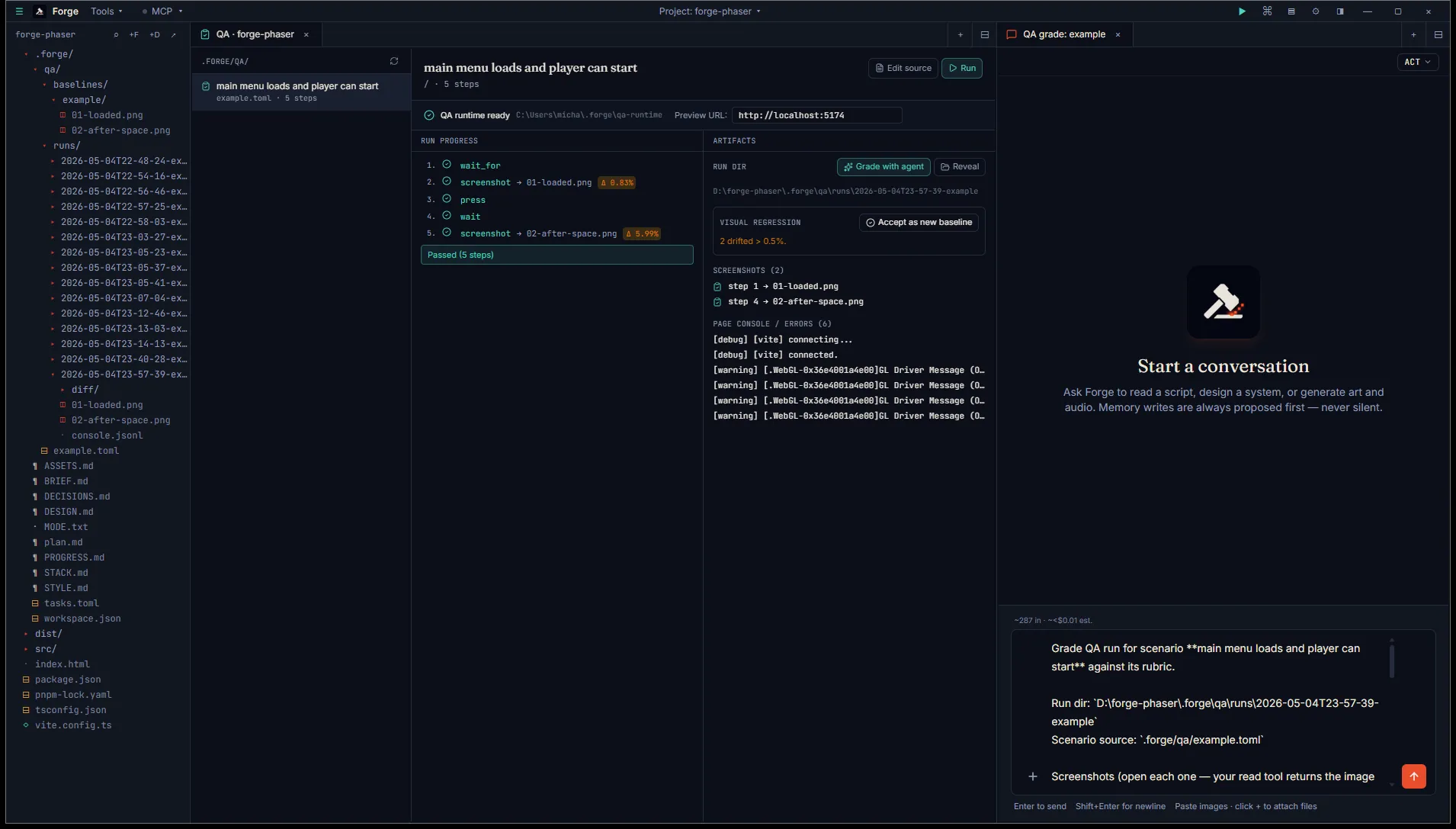
Hit Enter. The agent opens each screenshot via its read tool (Codex is multimodal, so the image bytes go directly to the model), reads the console log, then writes the grading text in chat and emits a forge-propose (operation: overwrite) targeting <run-dir>/report.md.
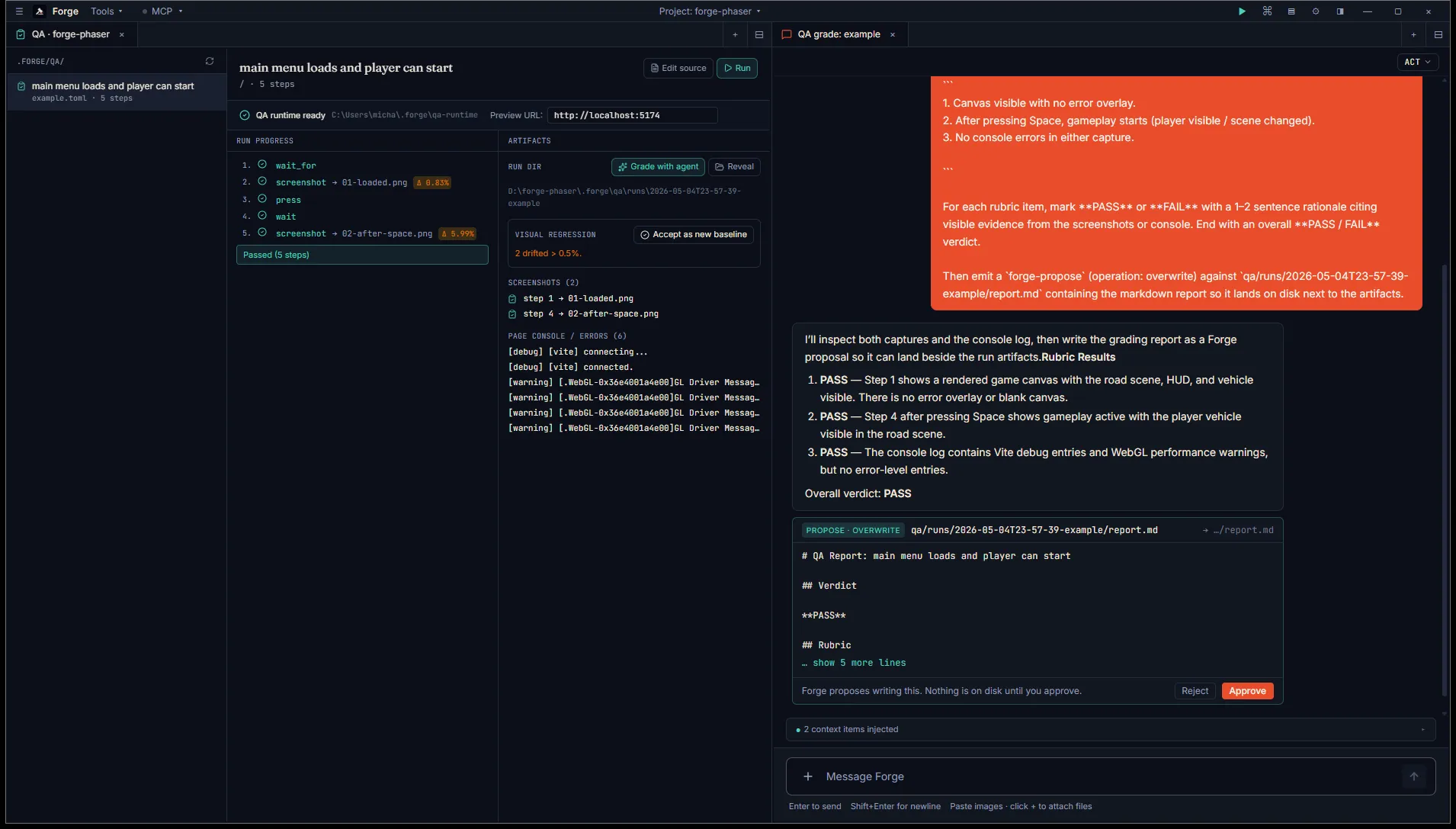
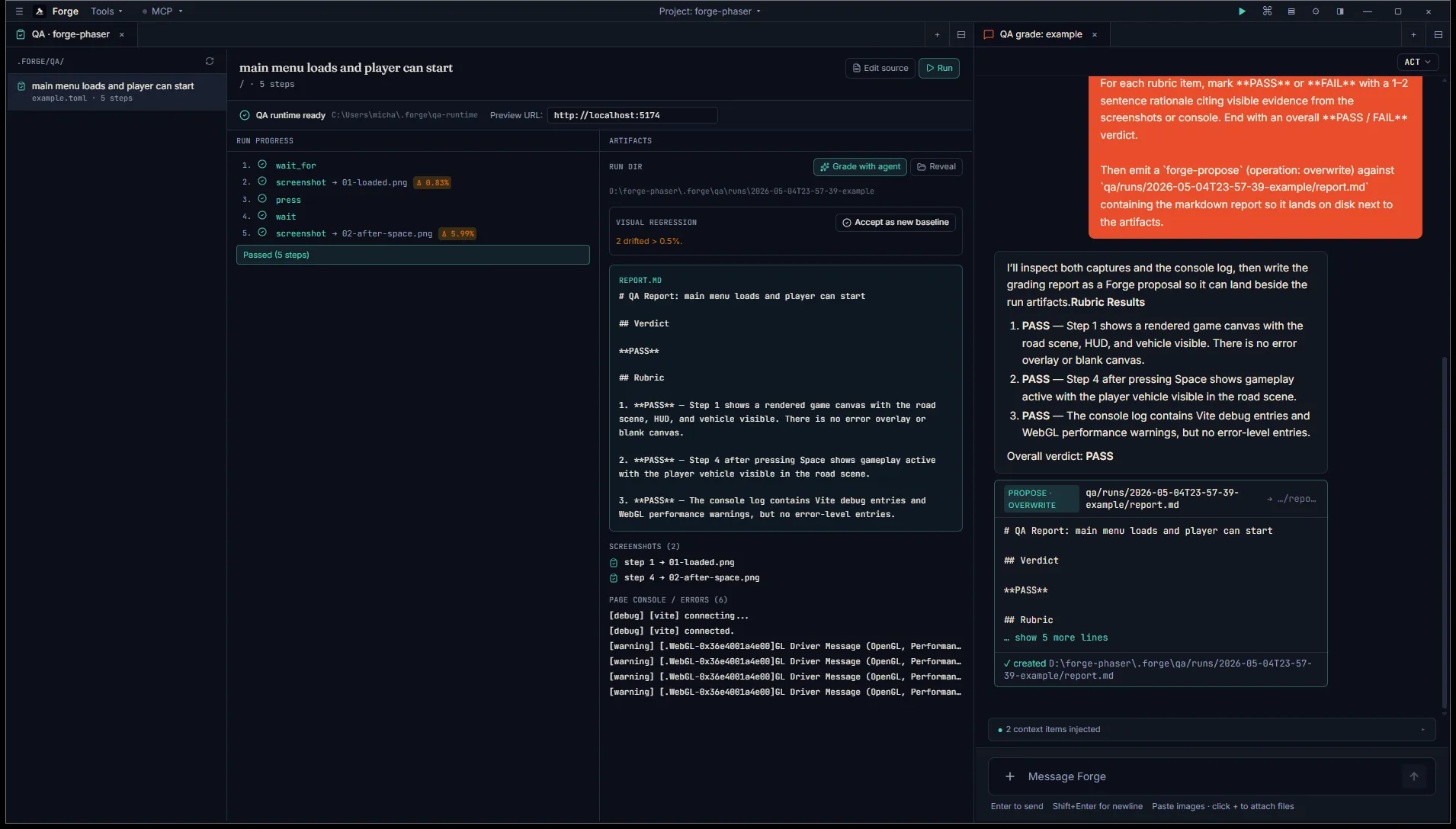
Approve the proposal. The QA tab’s Artifacts panel polls report.md every few seconds and renders it inline next to the run progress the moment it lands. No tab flip needed.
Per-step approval is the loop’s only safety gate. Forge does not auto-approve; even with the runtime set up the user always reviews the report before it lands on disk.
Where things live on disk
Section titled “Where things live on disk”<project>/.forge/qa/ example.toml # scenario source baselines/ example/ 01-loaded.png # accepted-as-baseline snapshots 02-after-space.png runs/ 2026-05-04T22-58-47-example/ # one dir per run, sortable by name 01-loaded.png # this run's captures 02-after-space.png console.jsonl # per-line console + page errors diff/ # pixel-diff PNGs (only when drifted) 01-loaded.png report.md # agent's grading verdict (after approve)Run dirs are append-only. Old runs accumulate as a history of how the project looked at each tagged moment — handy when a bug report references a specific build.
What’s coming next
Section titled “What’s coming next”V6.3 ships the web-game playtest harness end-to-end: scenario format, runner, diff, agent grading, report. Native engine playtest (Unity / Godot) is on the V6.x patch list — different capture machinery (engine-side screenshot, automated input injection through the bridge) and a slot of its own.
The autonomous-loop integration is the bigger pull: when Run plan drives a focused chat through a slice, the natural next step is to fire a QA scenario after each accepted edit and pause the loop on a failed grade. The primitives are now in place.